
English
VGrow Smart Grow Box Manual
MODEL NAME
-
VG-Y18B
-
VG-Y18B-EU
-
VG-Y18B-CA
-
VG-Y18B-UK
-
VG-Y18B-AU
SAFETY INFORMATION
Please read the following instructions carefully before using this device. Failure to observe these safety instructions may result in injury and will release VIVOSUN of all liability and void all product warranties.
Handling
-
For Indoor Use Only.
-
Keep Dry - The VGrow Smart Grow Box is not waterproof. Protect the device from moisture and dripping water. Do not spray water directly on the unit.
-
Avoid Physical Damage - Do not expose the VGrow Smart Grow Box to impact or severe weather conditions.
-
Acceptable Temperature Range - Only operate the grow box at temperatures between 10°C and 32°C (50°F to 90°F).
-
Inspect Before Use - Visually inspect the grow box and power cord for any loose parts or damage before use. Do not use if any damage is found.
Power Cord
-
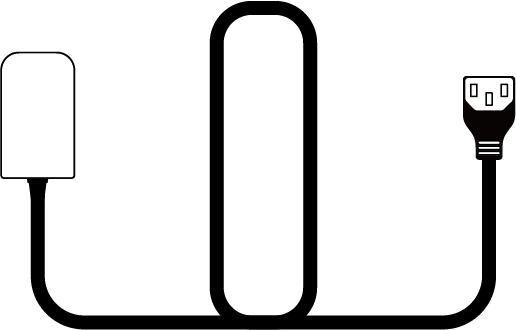
This product is equipped with a 3-prong grounded AC power cord. It fits only grounded electrical outlets.
-
To reduce the risk of electric shock and fire, always plug the cord into an accessible, properly grounded outlet. If your outlet does not accommodate the grounded plug, contact a licensed electrician to install a grounded socket.
-
Keep the device and power cord out of reach from children.
Filter
To ensure safe operation and proper performance of the VGrow Smart Grow Box, follow these filter maintenance guidelines:
-
Always disconnect the power cord before servicing or replacing the filter.
-
Replace the filter every 3 months during regular use to maintain optimal airflow and odor control. Also replace the filter immediately if you notice any odor leakage or reduction in airflow.
-
Failure to replace the filter regularly can decrease system performance over time. A clogged filter restricts airflow which can lead to odor buildup and other issues.
Repairs
If you experience an issue with your device, please contact us before attempting any repairs. Opening the device to inspect or repair is only allowed with VIVOSUN’s explicit permission.
Disassembling the device or installing add-ons without VIVOSUN’s explicit permission could damage your device in ways not covered by the warranty. Unauthorized modifications or repairs are made at the user’s own risk.
Cleaning
To safely clean your device:
-
Turn off and unplug the power cord. This prevents electric shock or damage during cleaning.
-
Using a clean, soft, lint-free cloth, gently wipe down the external surfaces. Avoid getting moisture in any openings or vents.
-
Do not use water, cleaning solutions, sprays, or detergents which could enter and damage internal components.
-
Allow your device to fully dry before reconnecting the power cord and turning it back on.
KEY FEATURES
-
All-in-One Ecosystem: Combines the essential elements of light, ventilation, air circulation, nutrients, and water.
-
Samsung LM301H EVO LED: Samsung LM301H EVO LED
-
Intelligent Remote Control: The VIVOSUN app enables remote guidance and automation throughout every phase of your plant’s growth cycle.
-
Versatile Irrigation System: Select the irrigation system that best suits your plant and your personal preferences.
-
360° Ventilation System: Full airflow coverage to all interior areas to effectively prevent mold and pests.
-
Discreet Viewing: The large viewing window offers a seamless interior view and the magnetized seal prevents light leakage.
PRODUCT CONTENTS
Main Contents
| Image | Name | Quantity |
|---|---|---|
|
|
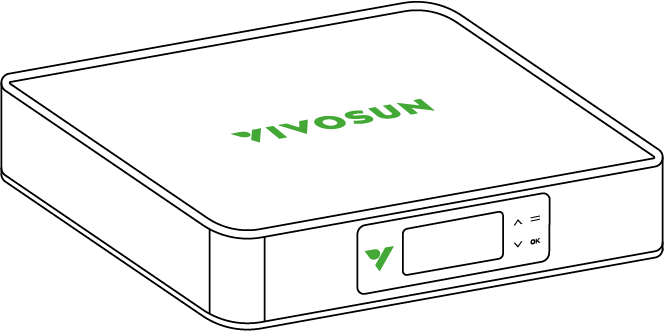
Smart Top Cover (Filter Included) |
1PC |
|
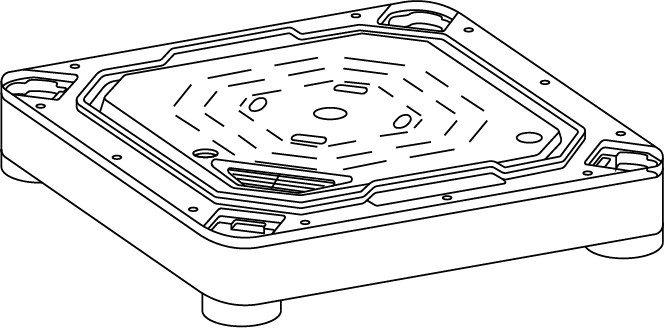
Irrigation System Base |
1PC |

|
Standard Skin |
1PC |

|
Vertical Structure Poles A |
2 PCS |

|
Vertical Structure Poles B |
2 PCS |
|
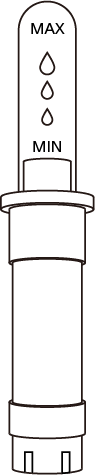
Water Meter |
1PC |
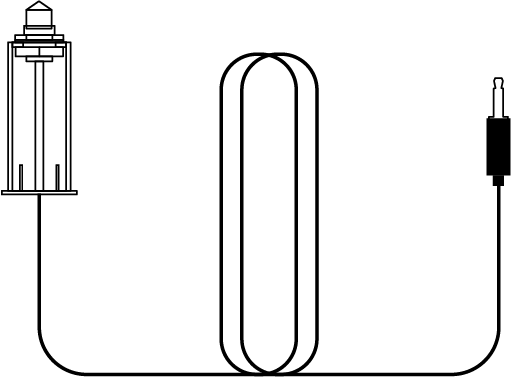
|
Water Level Sensor |
1PC |
|
Power Cord |
1PC |
Accessories Box
| Image | Name | Quantity |
|---|---|---|
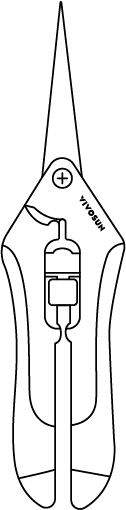
|
Pruner |
1 PC |

|
Trellis Net |
1 PC |
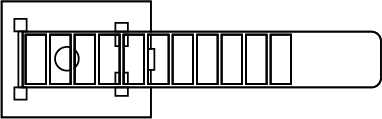
|
Wire Tie |
1 PC |
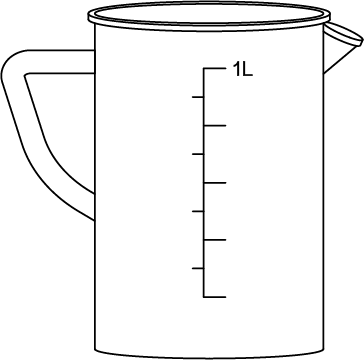
|
Measuring Pitcher 1L |
1 PC |
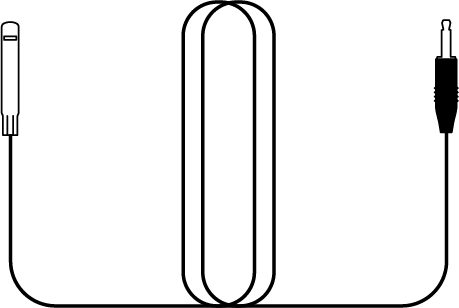
|
Temperature & Humidity Sensor 1m |
1 PC |
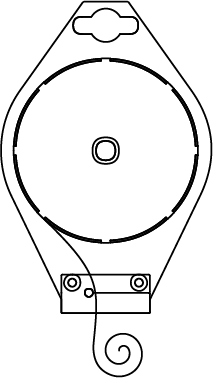
|
Twist Tie Roll 50m |
1 PC |

|
Add-on Base |
6 PCS |

|
Magnetic Hook |
6 PCS |
Supply Box
| Image | Name | Quantity |
|---|---|---|
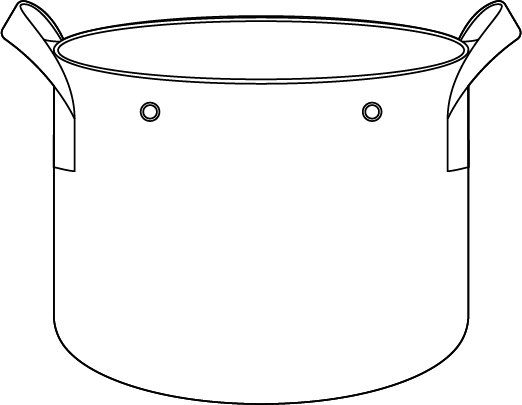
|
Grow Bags |
1 PC |

|
Coco Coir |
1 PC |
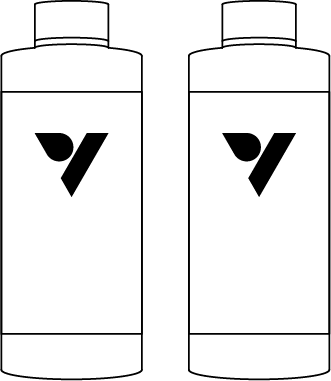
|
Nutrients A & B |
1 SET |
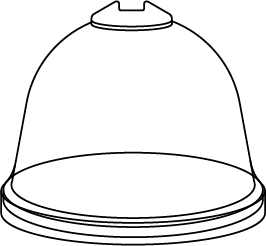
|
Humidity Dome |
3 PCS |
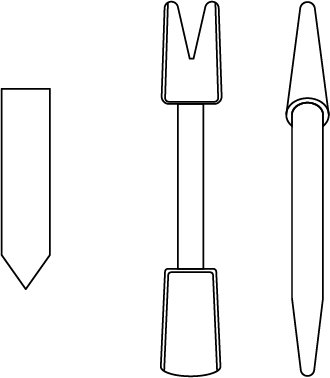
|
Planting Tools & Labels |
10 PCS |

|
Syringe |
1 PC |

|
Disposable Nitrile Gloves |
40 PCS |
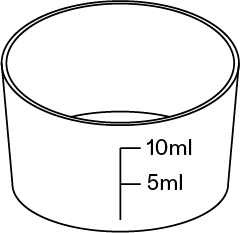
|
Measuring Pitcher 10ml |
1 PC |
COMPONENT DESCRIPTION
| Direction | Image | Description |
|---|---|---|
Front |
|
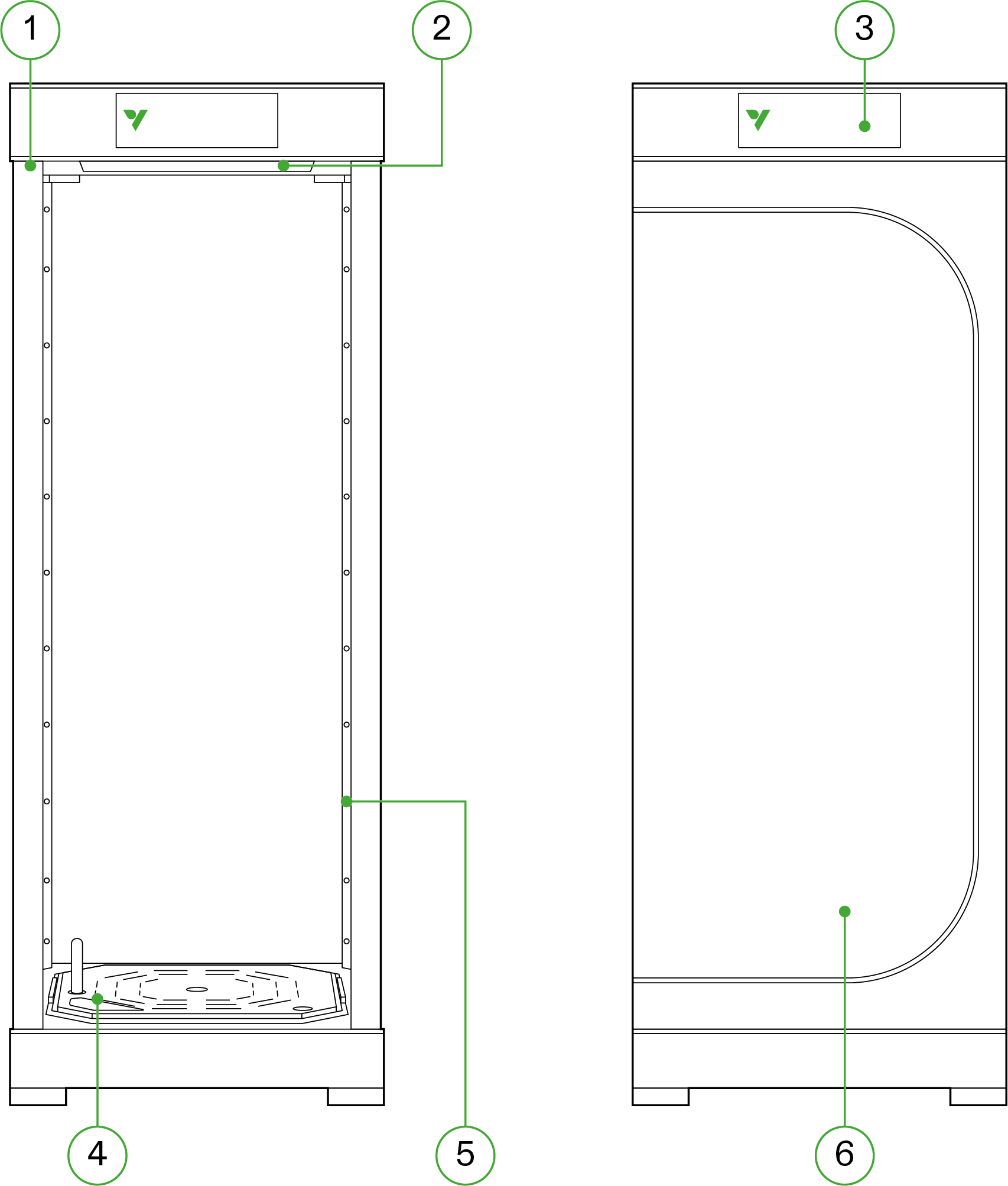
1. Smart Controller 2. Air Circulation Outlet Ports 3. Self-Watering Pot 4. Add-on Base (In Accessories Box) 5. Magnetic Hook (In Accessories Box) |
Back |
|
6. Ventilation Air Outlet 7. Water Meter 8. Ventilation Air Inlet |
Smart Top Cover |
|
9. Ventilation Fan & Filter (Filter is pre-installed) 10. Circulation Air Inlet 11. Grow Light |
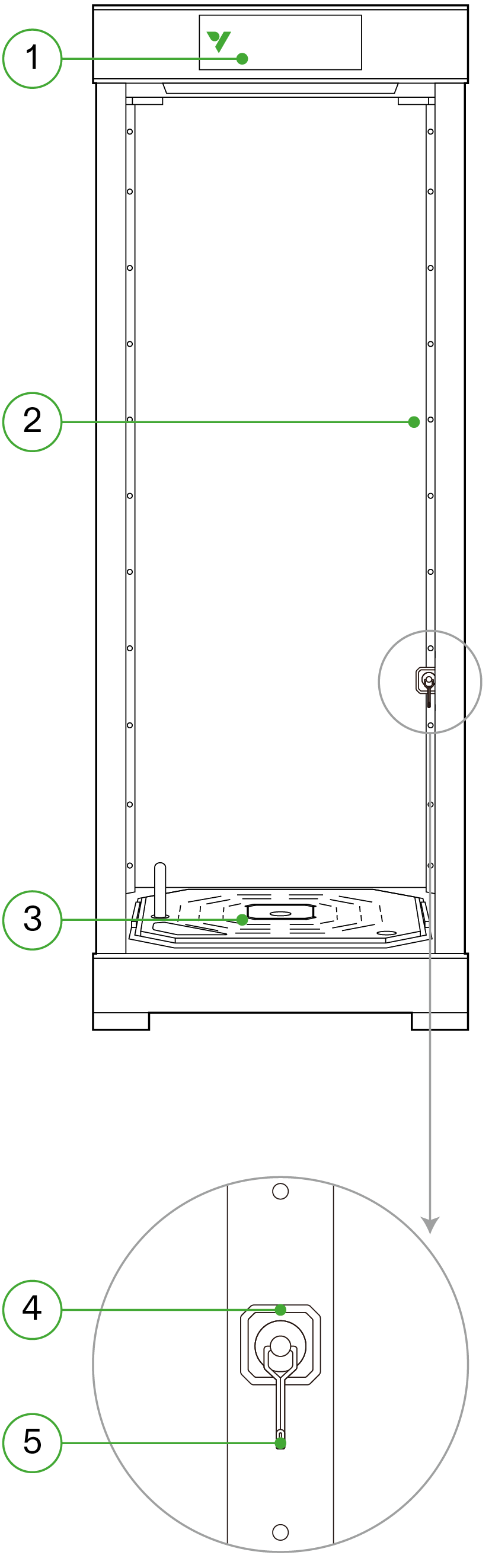
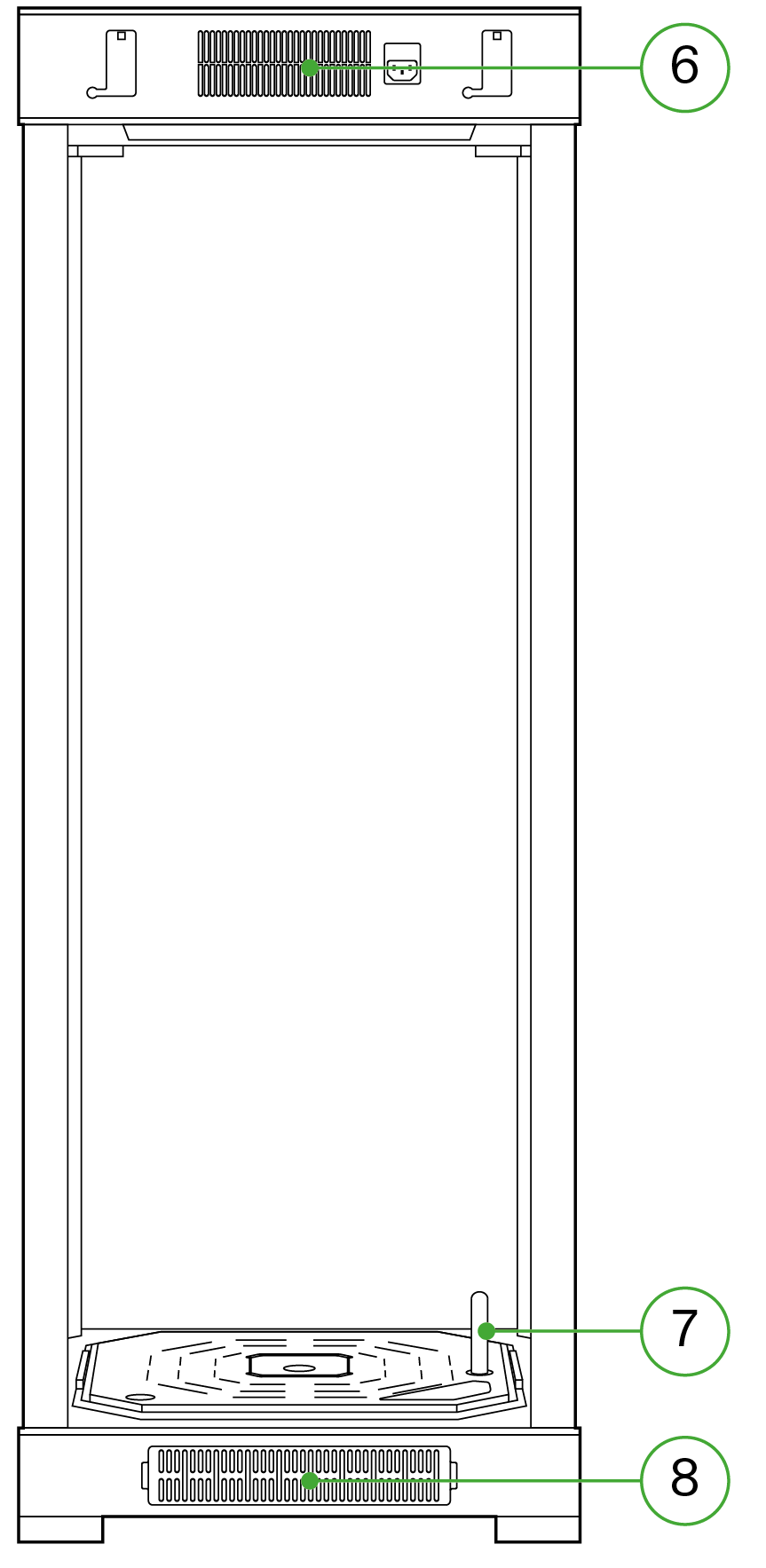
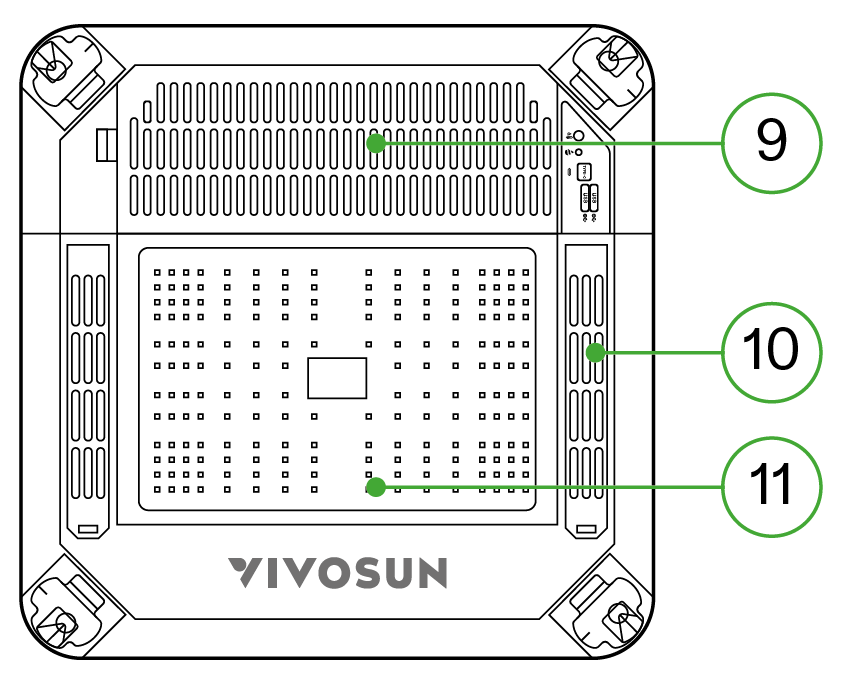
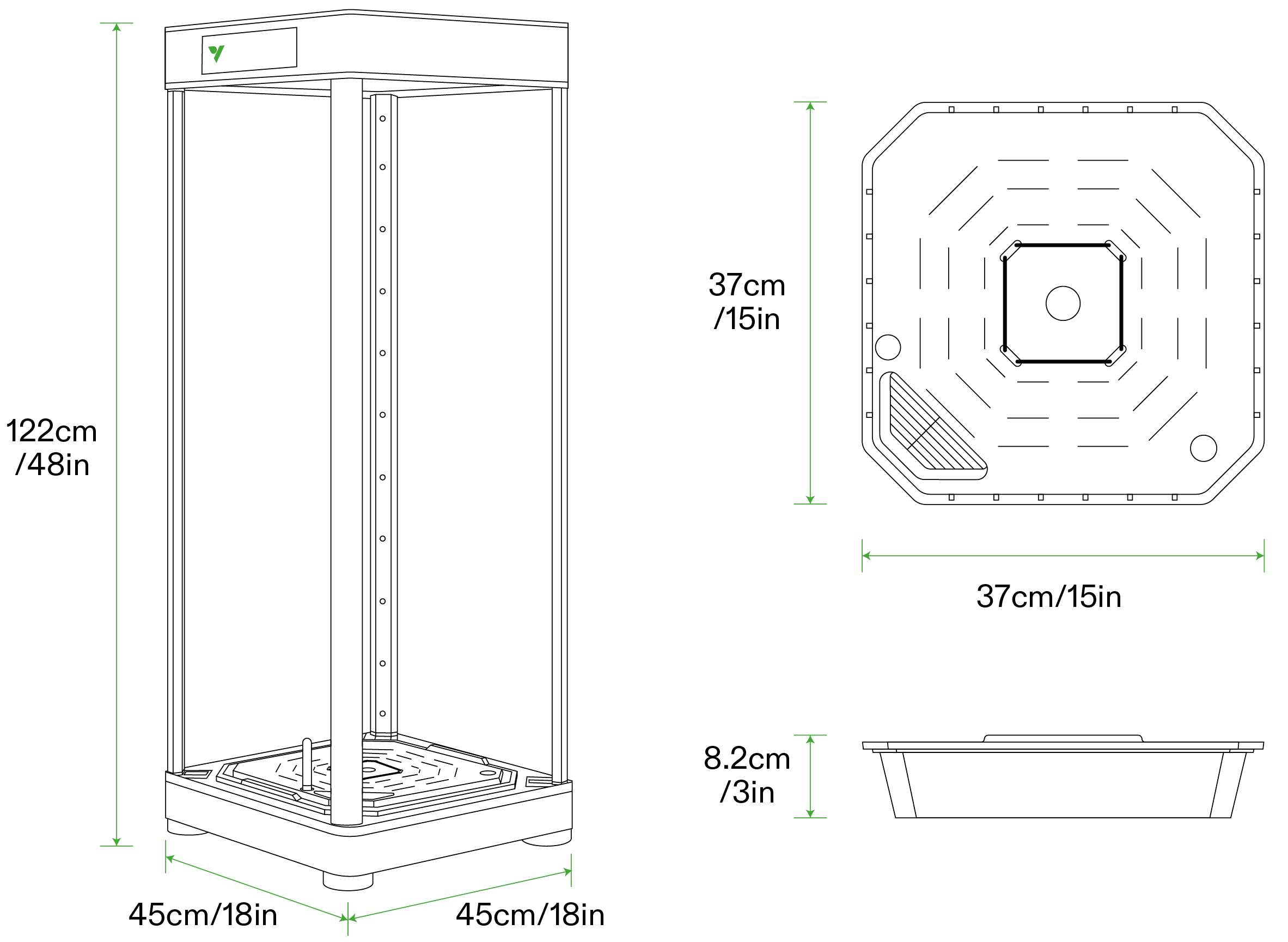
DIMENSIONS
Skin
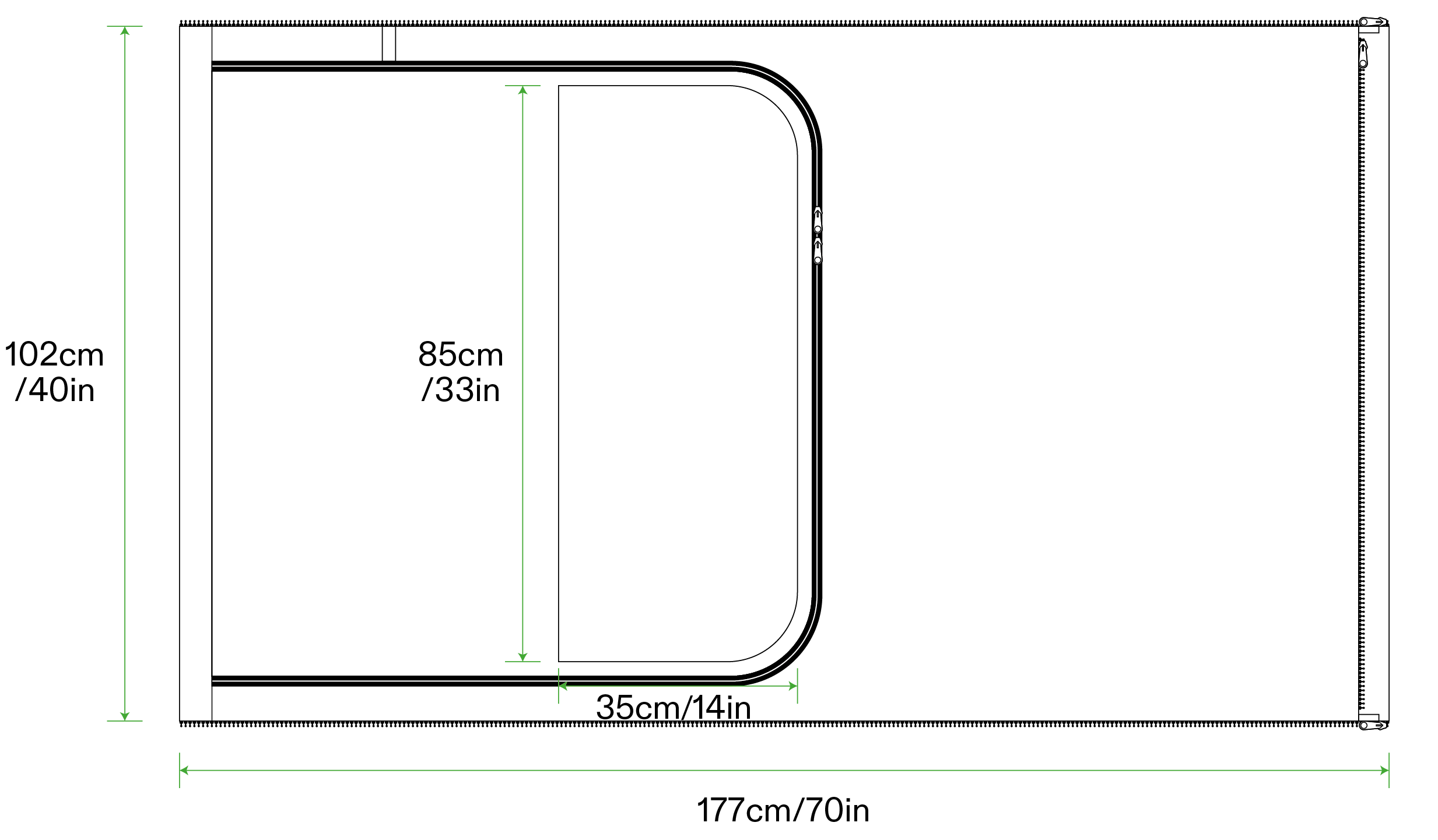
SPECTRUM
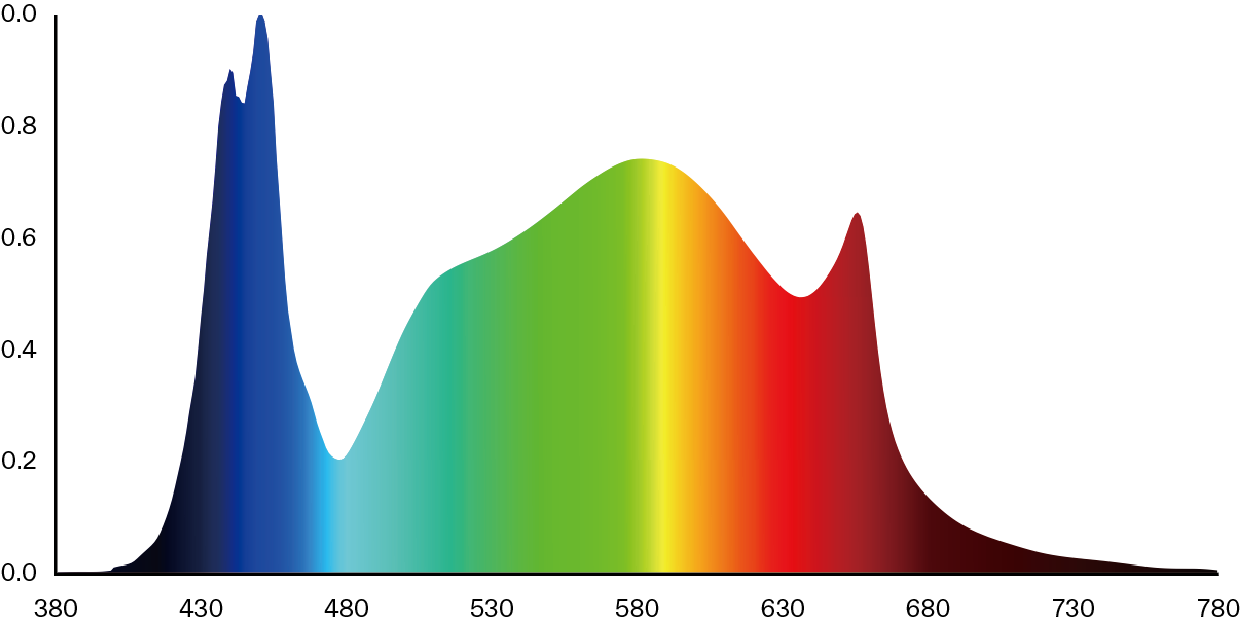
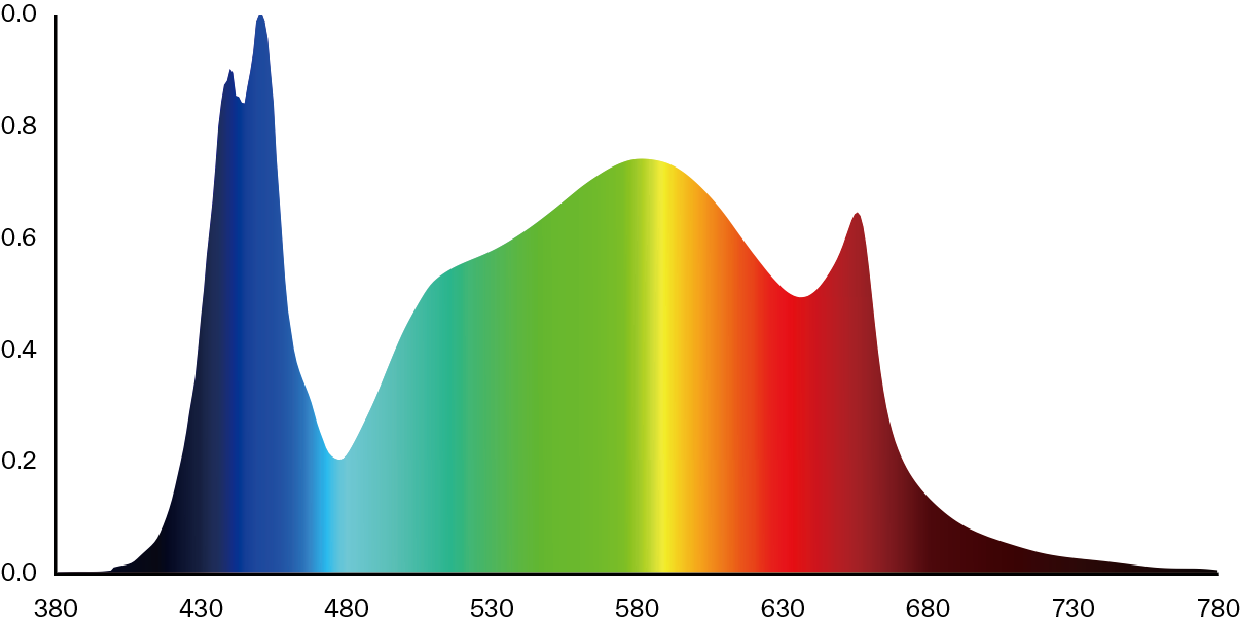
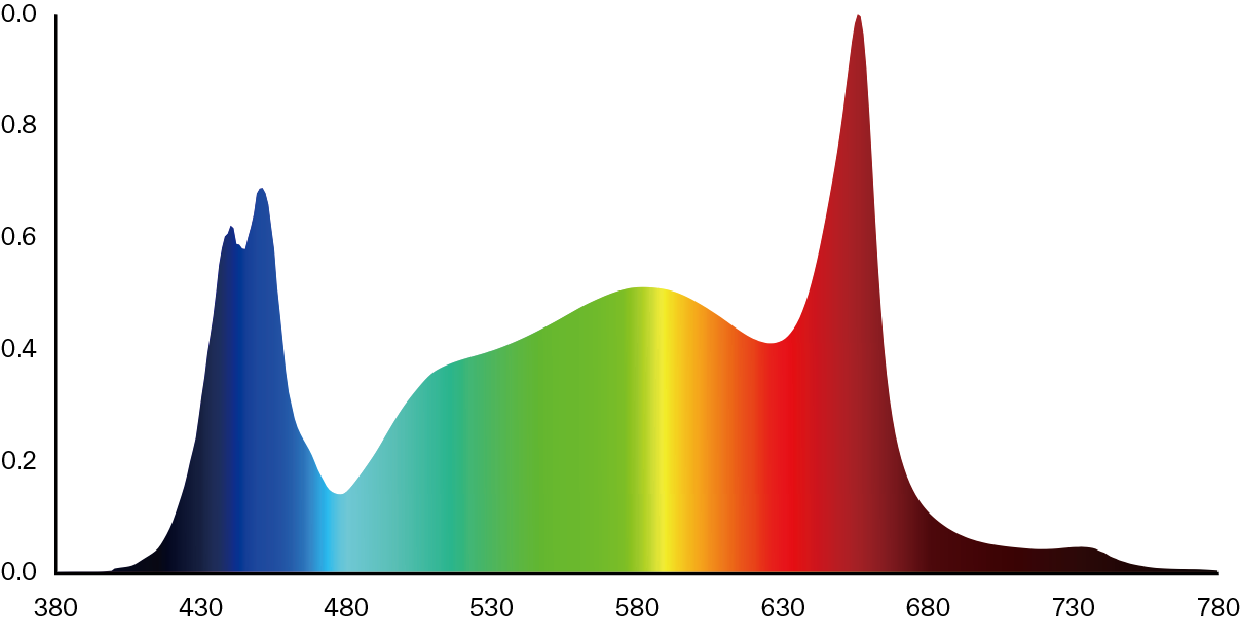
VGrow’s adjustable spectrum maximizes efficiency through different growth phases:
| Spectrum | Stage | Description |
|---|---|---|
|
Seedling |
The blue light-enhanced spectrum encourages stronger root development and prevents overstretching growth during the critical seedling period. |
|
Veg |
A balanced spectrum is provided, which is conducive to the growth of leaves during the vegetative stage. |
|
Flower |
The flowering cycle spectrum is optimized with targeted red (660nm) and far-red (730nm) wavelengths to promote abundant blooming. |
SPECIFICATIONS
| Spec | Value |
|---|---|
Dimensions |
46x46x122 cm / 18x18x48 in |
Weight |
11.8 kg / 26 lbs |
Grow Height |
92 cm / 36 in (one plant) |
Body Material |
Double-Sided Faux Leather |
Filter |
Compact Powder Activated Carbon Filter |
Tank Capacity |
6L / 1.6 Gal |
Irrigation |
Self-Watering, Upgradable to Drip Irrigation and DWC |
Energy Consumption |
Approximately 1kWh Per Day |
Yield |
Up to 227 g / 8 oz. |
Lighting System |
100W Full Spectrum Light |
Air Circulation |
Multi-Layered Air Circulation |
Ventilation System |
35 Cubic Feet per Minute |
External Interface |
2 USB & 1 SGS interface |
User Interface |
LCD Screen with Backlight |
Power Supply |
110V- 240V |
Connectivity |
Wi-Fi 2.4G |
Compatible OS |
iOS & Android |
INSTALLATION & CONNECTION
Connection
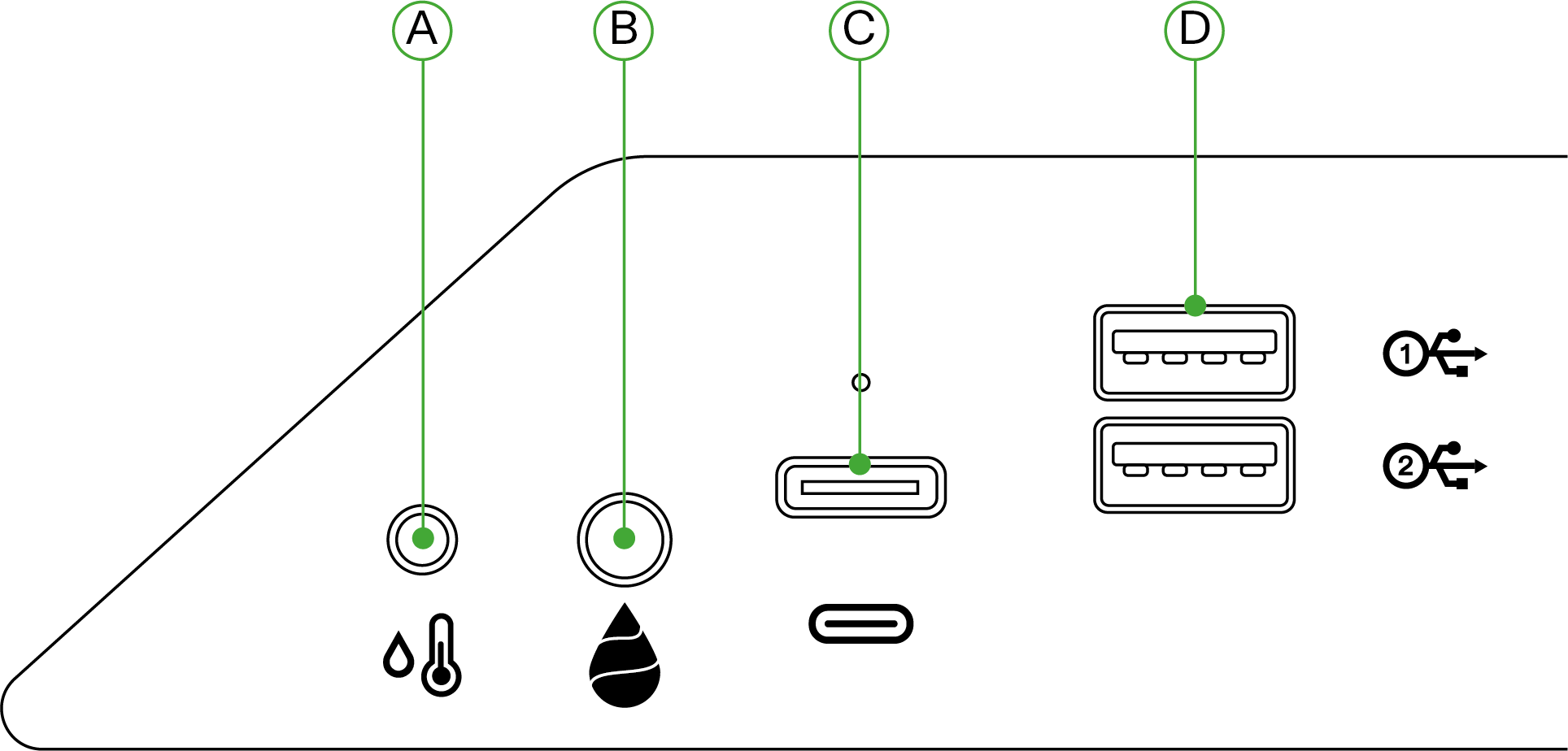
| Port No. | Description |
|---|---|
A |
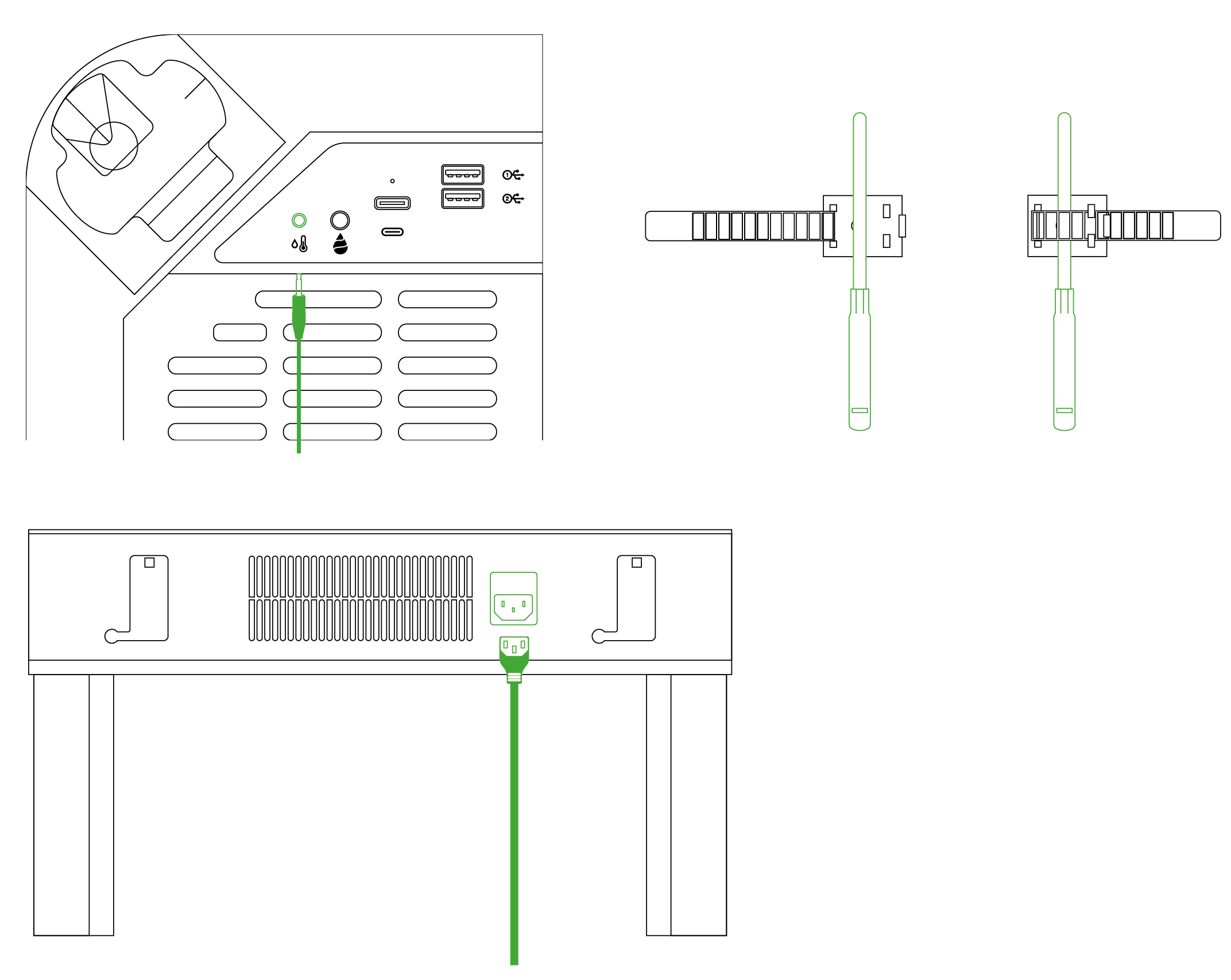
2.5mm AUX interface: Temperature & Humidity Sensor |
B |
3.5mm AUX interface: Water Level Sensor |
C |
Type-C Interface: GrowCam C4 |
D |
USB interface *2: AeroWave D4, Pump, Camera, Humidifier |
Installation
Step 1 Base Placement
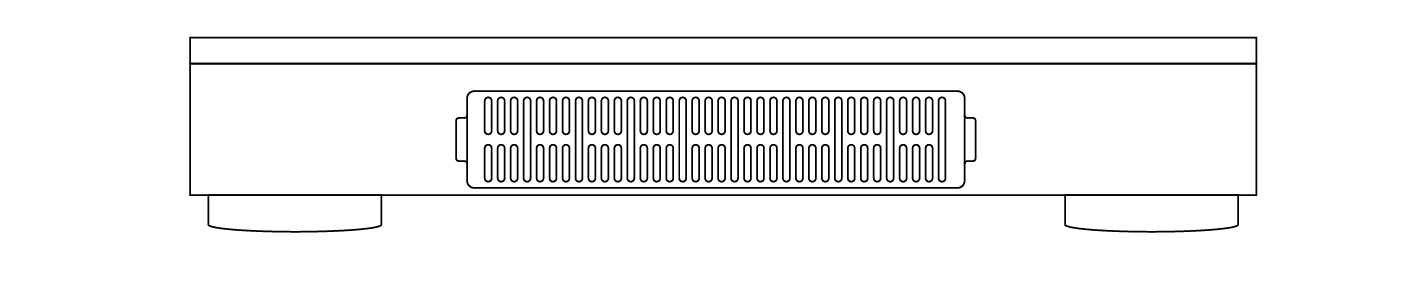
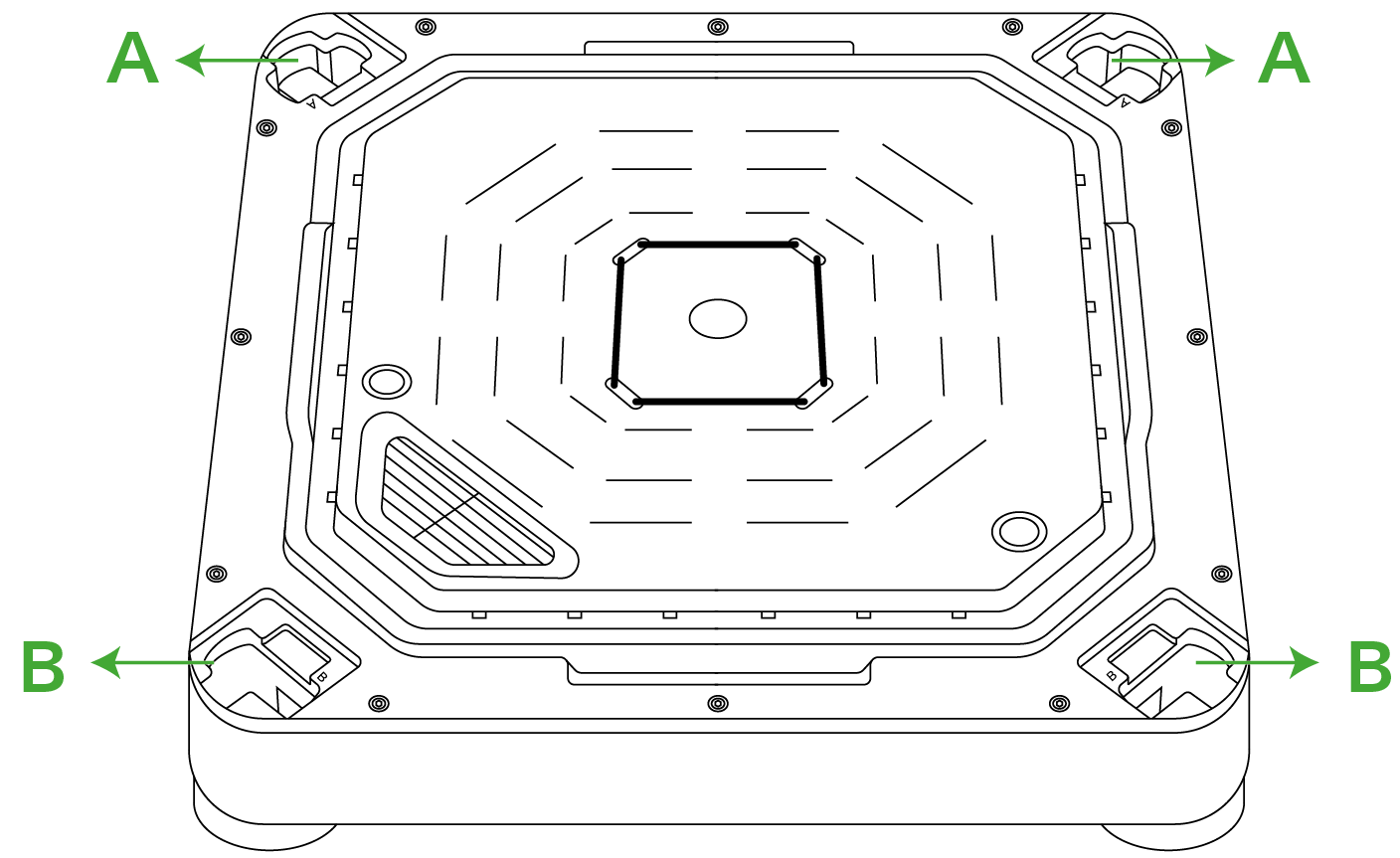
Place the Irrigation System Base on a flat surface. Mounting Hole B is on the front.
Mounting Hole A and the Ventilation Intake Vent are on the back.
Back Side
Front Side
Step 2 Mounting the Poles
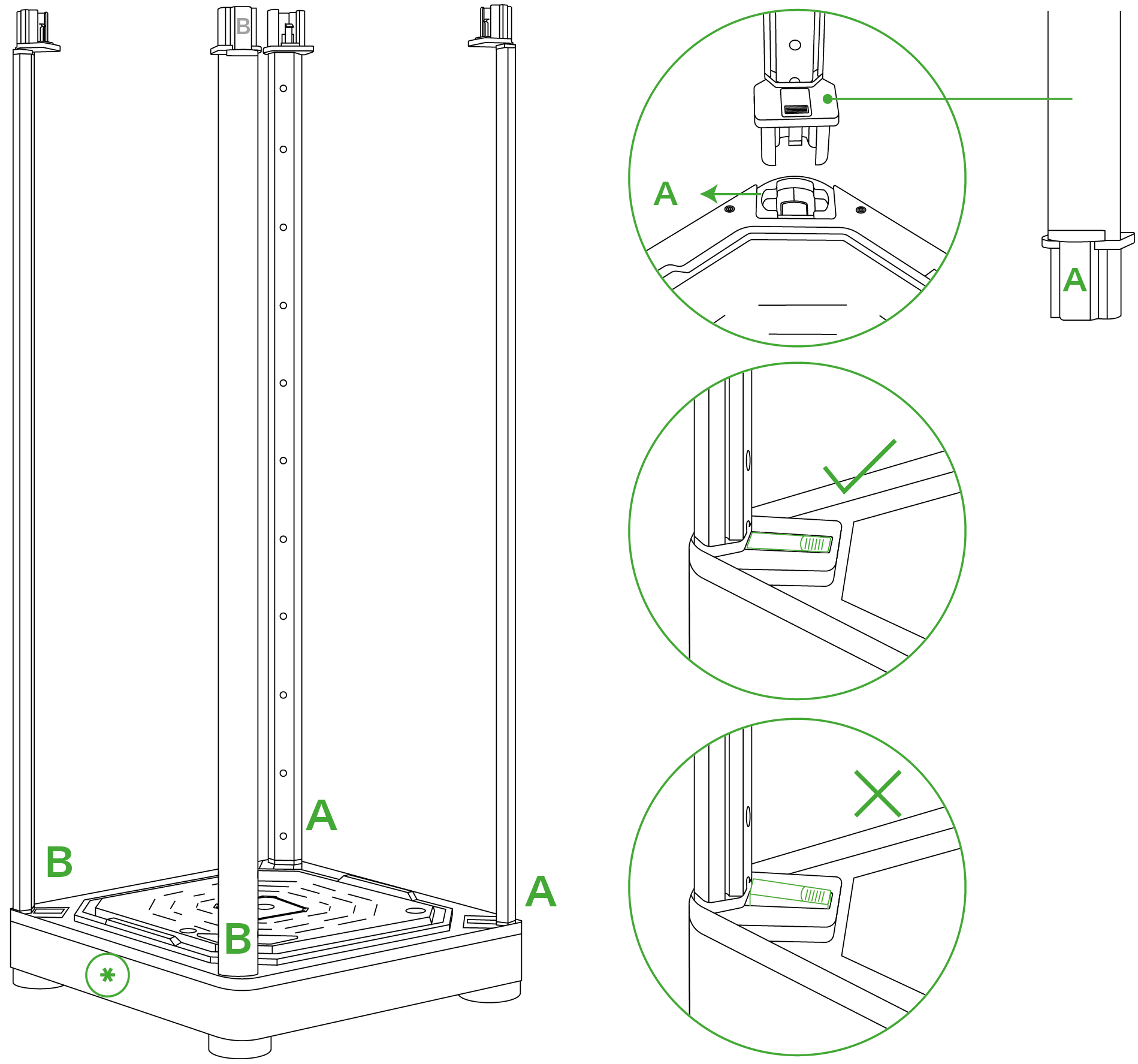
Align Vertical Structure Pole A with Mounting Hole A on the Irrigation System Base. Insert and push firmly until it clicks into place.
Align Vertical Structure Pole B with Mounting Hole B. Insert and push firmly until it clicks into place.
Check that both vertical pole claps are fully flat and in line with the base, indicating they are properly locked in place.
Note:
Vertical Structure Pole A and Vertical Structure Pole B are side-specific and must be installed in the correct positions.
Pole A only inserts into Mounting Hole A
Pole B only inserts into Mounting Hole B
Attempting to force an incorrect alignment can damage the irrigation system base or vertical poles. Please take care to match the labeled parts with their corresponding mounting holes.
* Front Side
Step 3 Securing the Smart Top Cover
The Controller interface is located on the front panel. Carefully grasp the Smart Top Cover with the Controller facing outward.
Align Vertical Structure Pole A with Mounting Hole A. Insert Pole A fully into Hole A until it clicks into place.
Align Vertical Structure Pole B with Mounting Hole B. Insert Pole B fully into Hole B until it clicks into place.
After insertion, verify both side clasps are completely flat and flush with the surface.
Safety Reminder:
When inserting the vertical structural poles into the smart top cover mounting holes, keep hands safely away from the connecting joints.
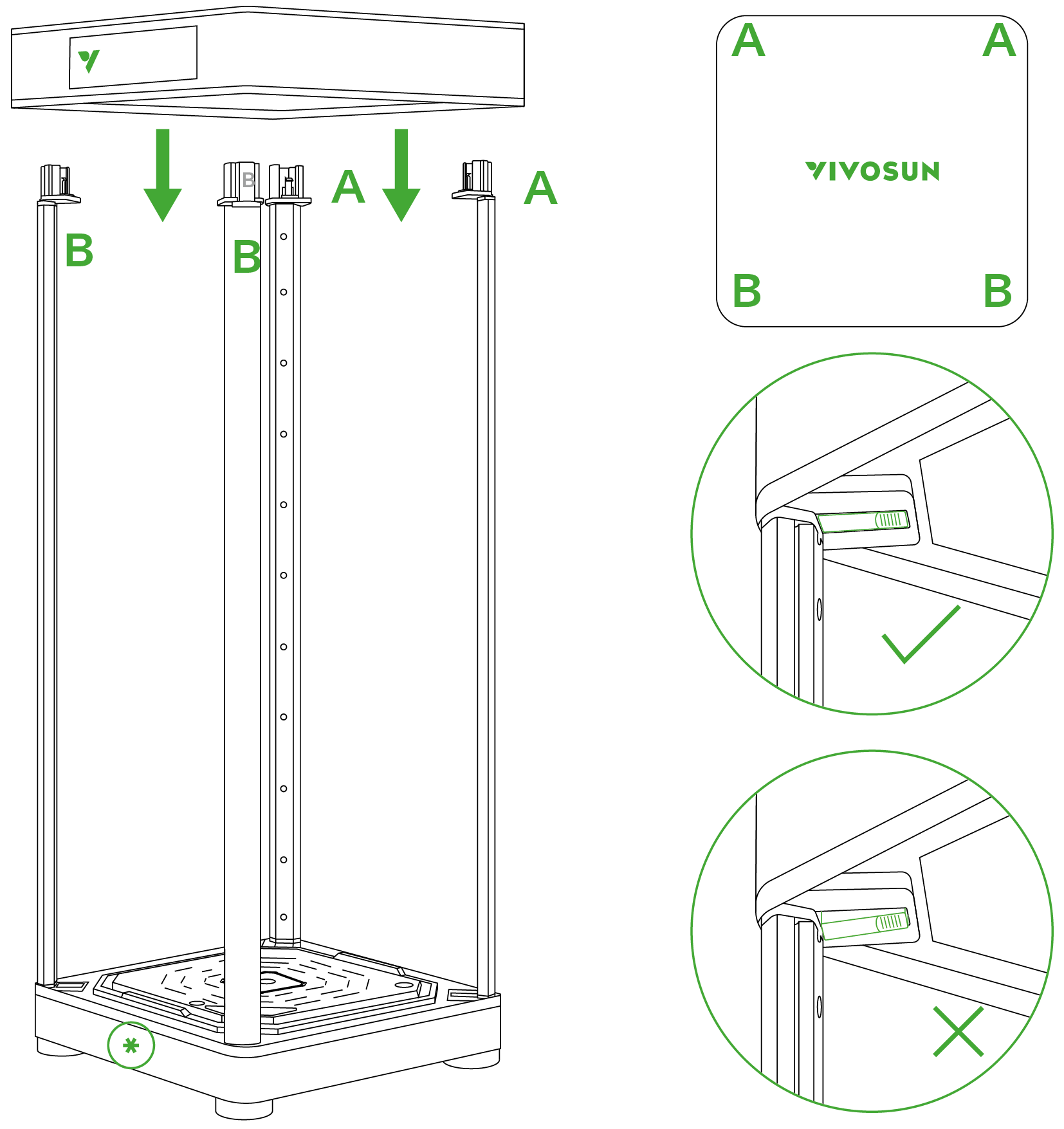
* Front Side
Step 4 Installing the Skin
Step 4.1 Attaching the Skin
Locate the installation support velcro strip on the top panel. Attach this velcro strip to the matching velcro strip on the skin. Press firmly to adhere it to the skin.
Before zipping up the skin, identify which side should face outward and which side should face inward:
Black side: This black surface faces outwards.
White side: This white side with the imprinted Plant Height Chart should face toward the interior of the grow box.
Zip the skin, starting with the TOP zipper first. Continue with the Bottom zipper.
Finish by sealing the BACK zipper completely.
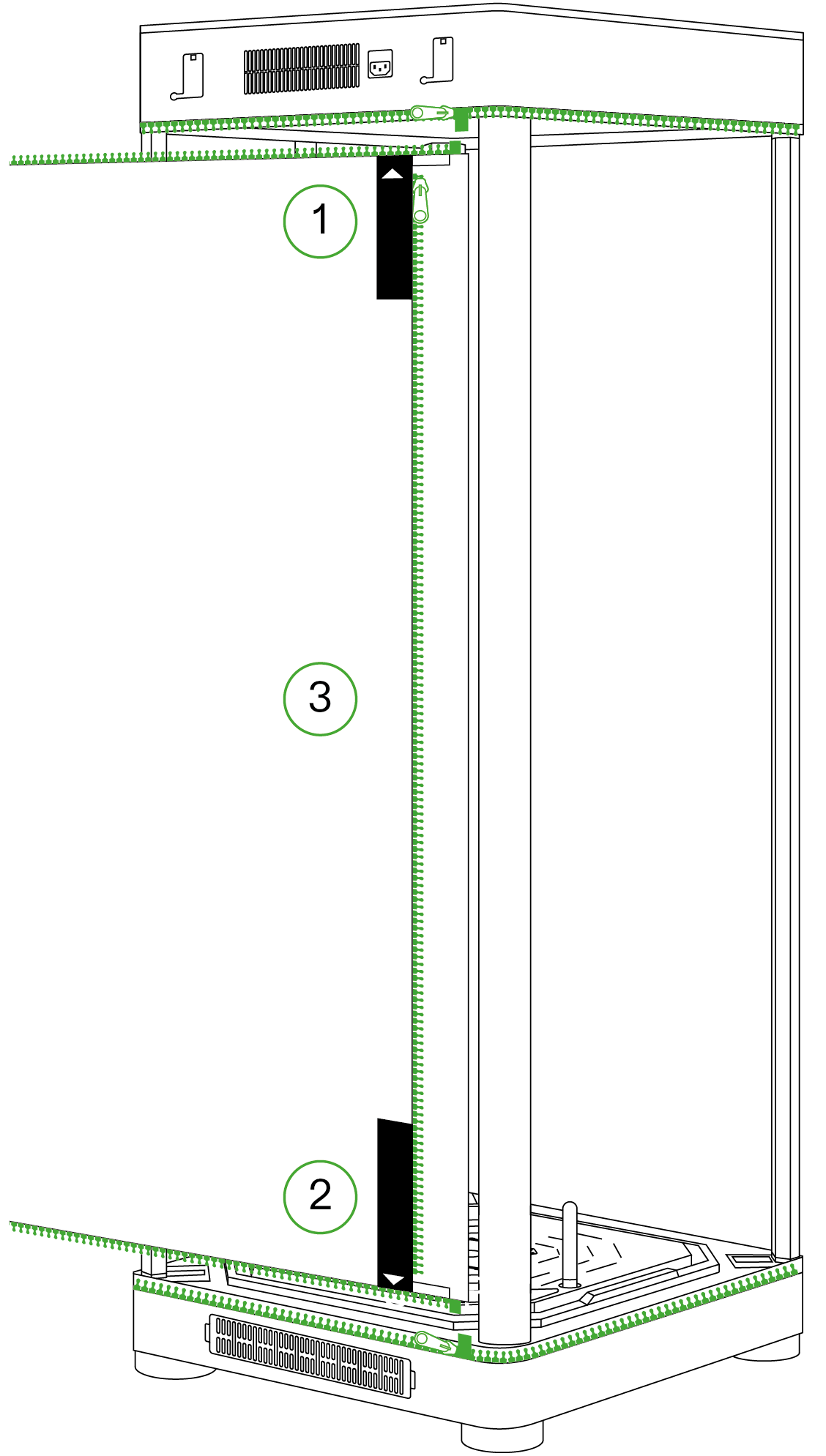
| Number | Description |
|---|---|
① |
STEP 1 Top Zipper |
② |
STEP 2 Bottom Zipper |
③ |
STEP 3 Back Zipper |
Step 4.2 Attaching the Skin
The viewing window and door can be attached to the left-side of the grow box using Velcro strips.
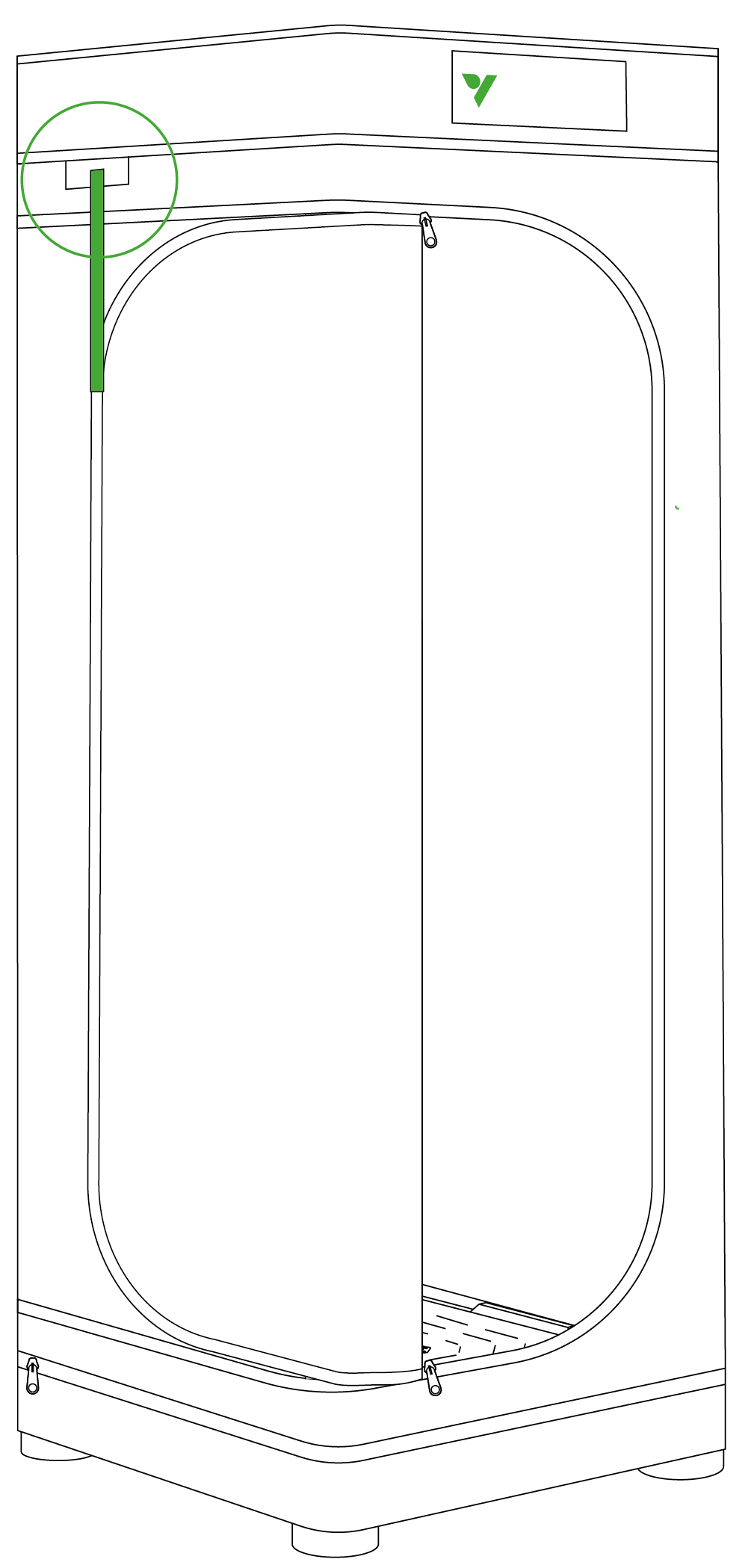
|
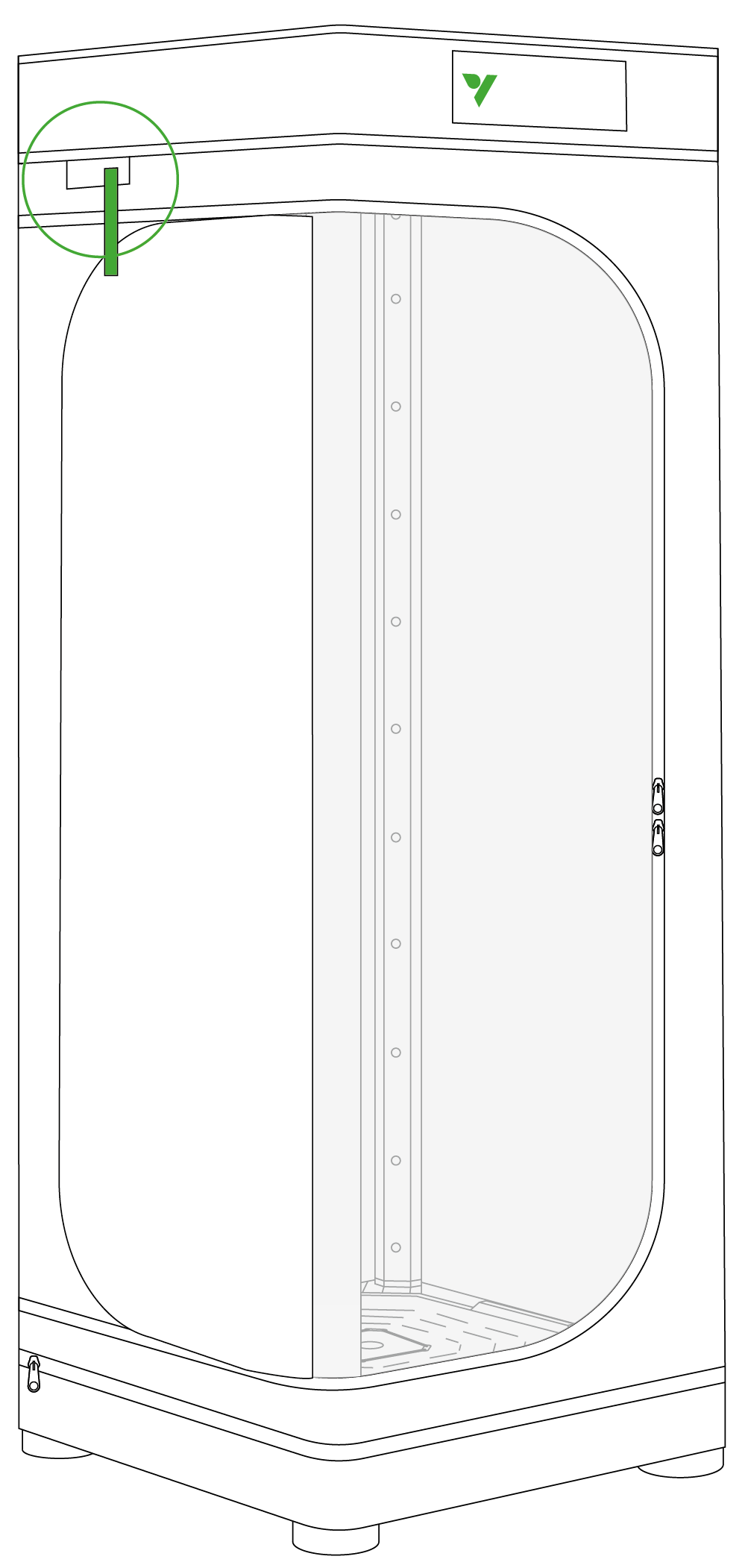
|
Door |
Viewing Window |
Step 5 Inserting the Water Meter/Sensor
Insert the water meter into the designated water meter hole on the self-watering pot lid.
Insert the water level sensor into the designated water level sensor hole on the self-watering pot lid.
Connect the 3.5 mm jack from the water level sensor wiring into the corresponding 3.5 mm interface port.
Organize any excess wiring by tucking it neatly into the cable raceway channels along the vertical structural poles. This safely routes the cords while keeping the interior space clean.
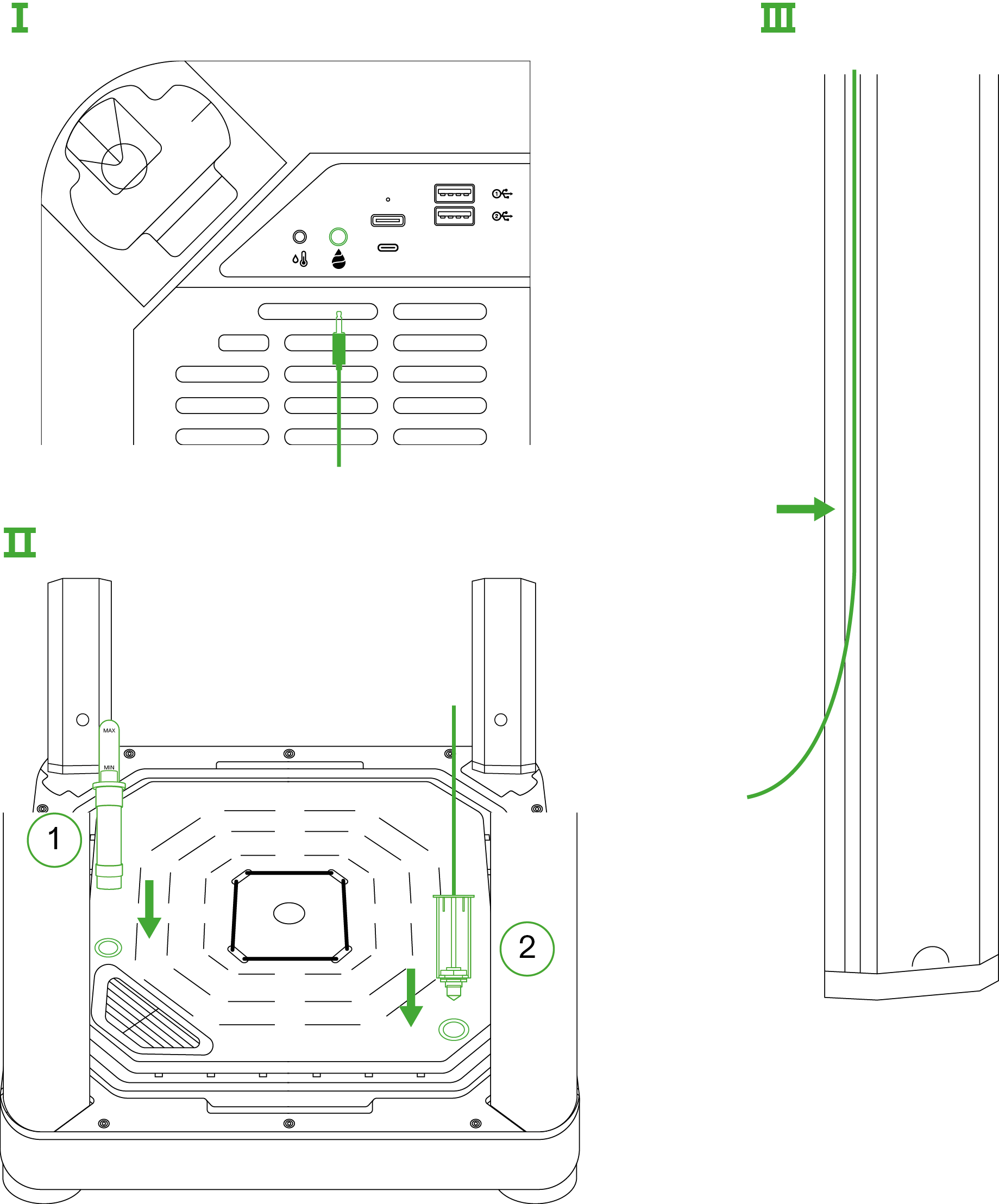
| Number | Description | Number | Description |
|---|---|---|---|
Ⅰ |
Smart Top Cover |
① |
Water Meter |
Ⅱ |
Irrigation System Base |
② |
Water Level Sensor |
Ⅲ |
Vertical Structure Poles |
Step 6 Inserting the Temperature/Humidity Sensor
Insert the Temperature & Humidity Sensor into the designated 2.5mm Temperature & Humidity interface. Secure the sensor in place using a wire tie. Finally, plug the device into a power outlet to start your cultivation journey with VGrow!
Note:
It is recommended to position the Temperature & Humidity Sensor at a height ranging from 2 to 4 inches above the canopy.
Smart Top Cover
Step 7 Connect VGrow to VIVOSUN APP
Step 7.1 Download VIVOSUN APP
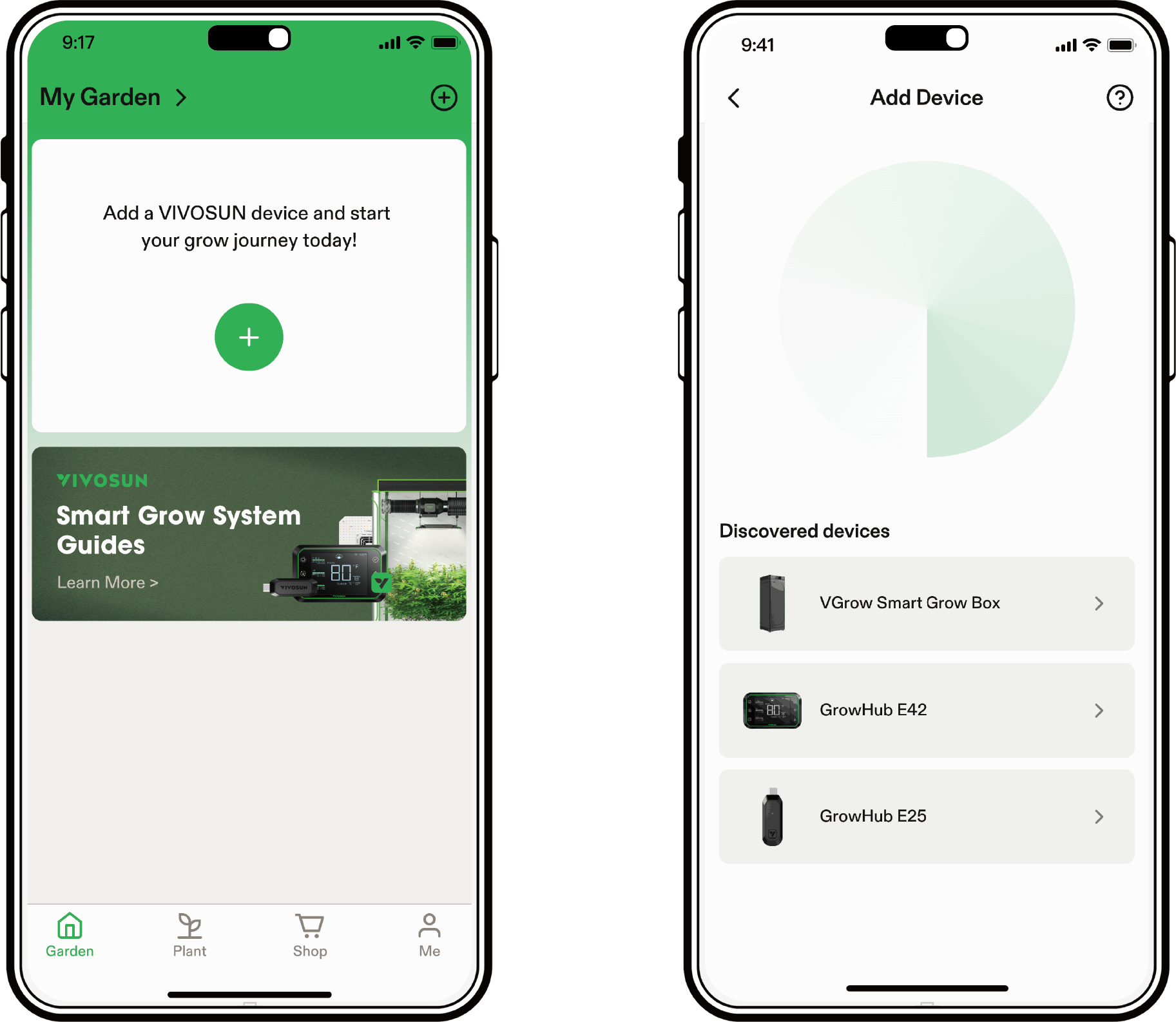
Search ''VIVOSUN'' in the Apple App Store or in the Google Play Store to download the VIVOSUN App.
Step 7.2: Add VGrow
Tap ''+'' or  to add VGrow. When connecting to VIVOSUN APP ,
  will flash on the LCD screen.
Note:
Make sure you have a 2.4G WiFi connection and that Bluetooth is enabled on your phone.
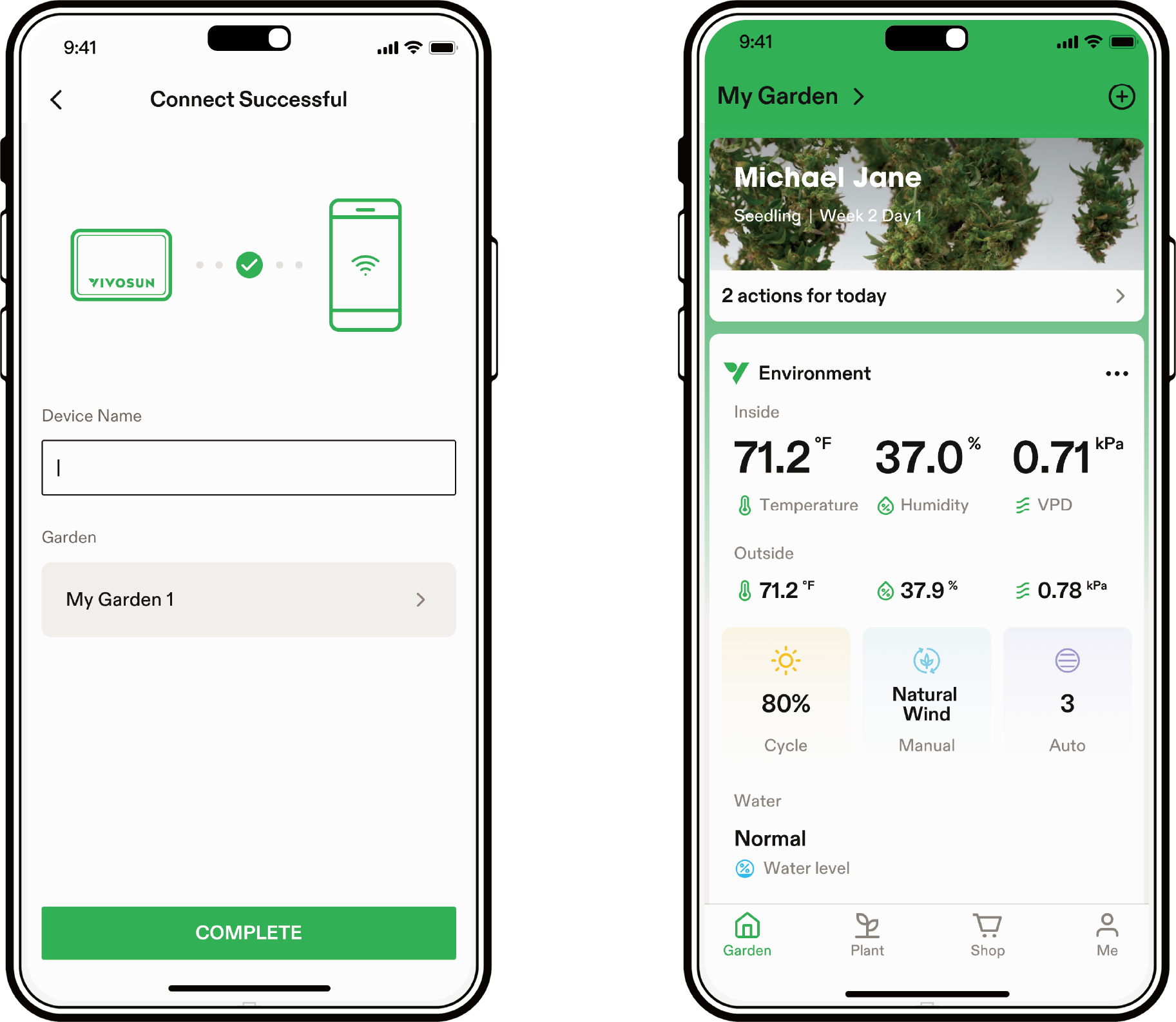
Step 7.3 Name Device
After connecting successfully, you can rename your device and start growing.
Note:
-
You can create a new Garden or add VGrow to your current Garden to work with your GrowHub Controller E42/E42A/E25 if you have one.
-
We suggest creating a new Garden so you can run a dedicated recipe for VGrow.
-
Both VGrow and your GrowHub Controller E42/E42A/E25 will run the same recipe if they are in the same Garden.
Grow Pilot
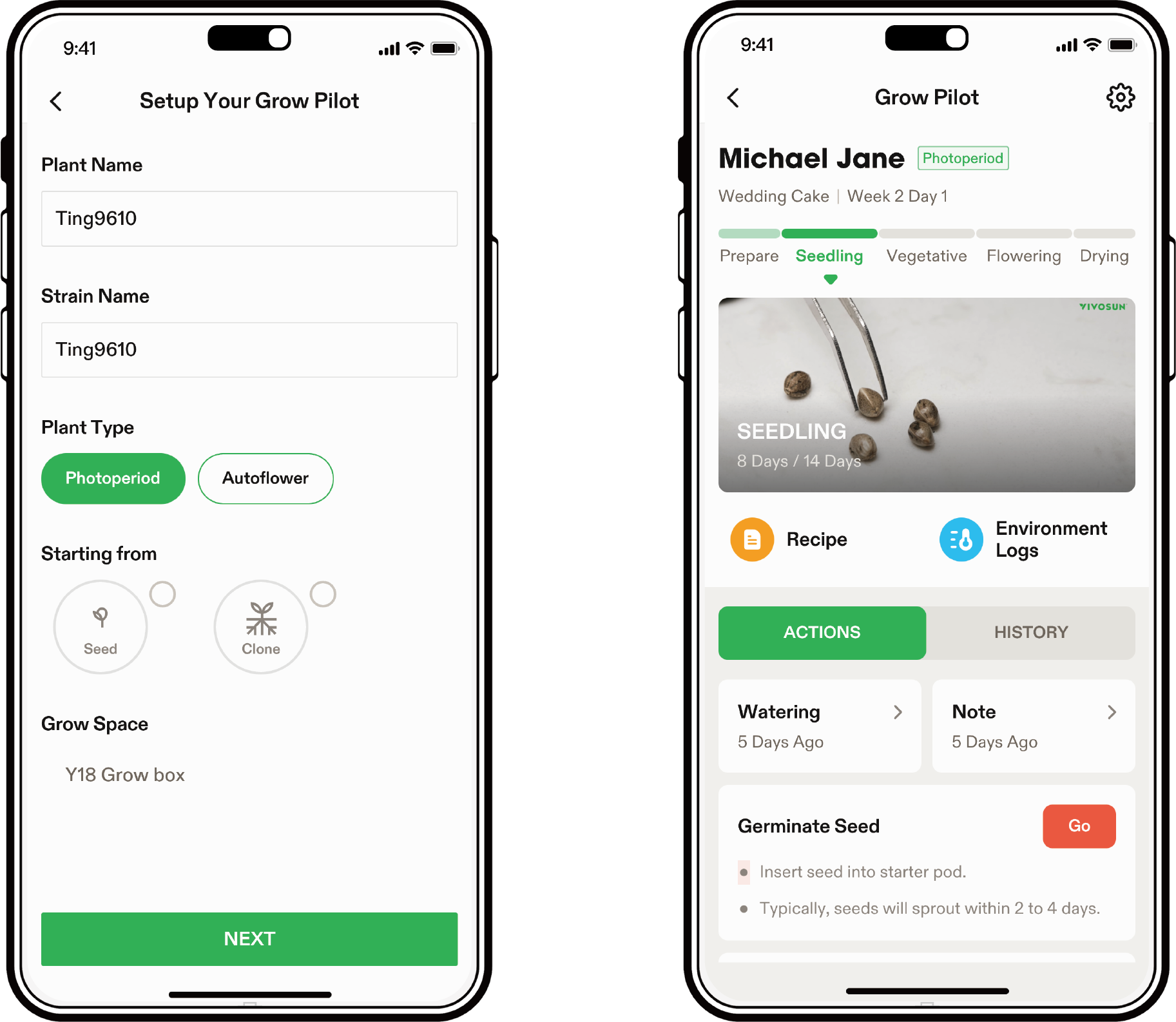
Leveraging our expertise in both home and commercial cultivation, we’ve designed Grow Pilot to provide novice growers with a seamless cultivation journey. In addition to basic remote control and real-time data display, Grow Pilot automatically selects suitable growth recipes based on the userʼs chosen plant species. It then guides users through the entire cultivation process with step-by-step planting actions and checklists. Each action comes with detailed video tutorials to assist users in completing each growing phase, from seed to harvest. By optimizing conditions specifically for the selected plants and accompanying every step with instructions, Grow Pilot ensures a smooth and educational growing experience.
CONTROL INTERFACE
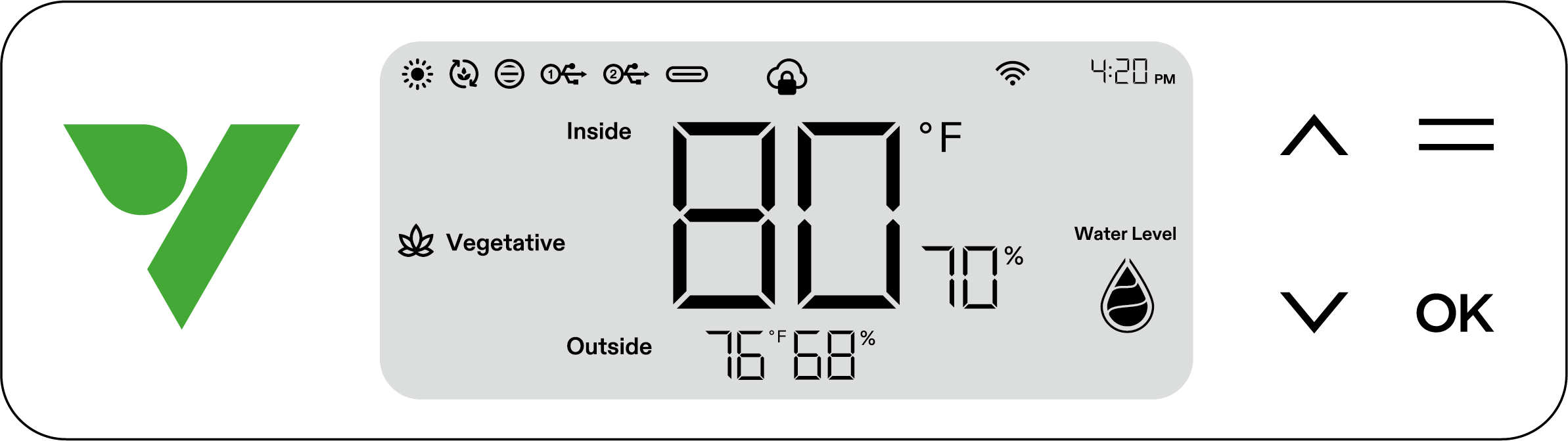
| Image | Name | Control |
|---|---|---|

|
Up Button |
Press the Up Button to increase value of current setting (time, stage, etc.). Press and hold to switch between °C and °F. |

|
Down Button |
Press the Down Button to decrease value of current setting (time, stage, etc.). Press and hold to turn on/turn off Night Mode. |

|
Menu Button |
Press and hold the Menu Button to enable selection between the Seedling, Vegetative,Flowering,and Drying stages. |

|
Confirm Button |
Press the Confirm Button to confirm settings (time, stage, etc.). Press and hold to change system settings (time, screen brightness, etc.). |

|
Status Light |
The Status Light remains on during regular operation. It pulsates or "breathes" when specific actions are required, such as topping, trimming, low-stress training (LST), pruning, etc. In the case of abnormal conditions or alarms, like high temperature/humidity, low temperature/humidity, or the need to add water, the Status Light will flash. |
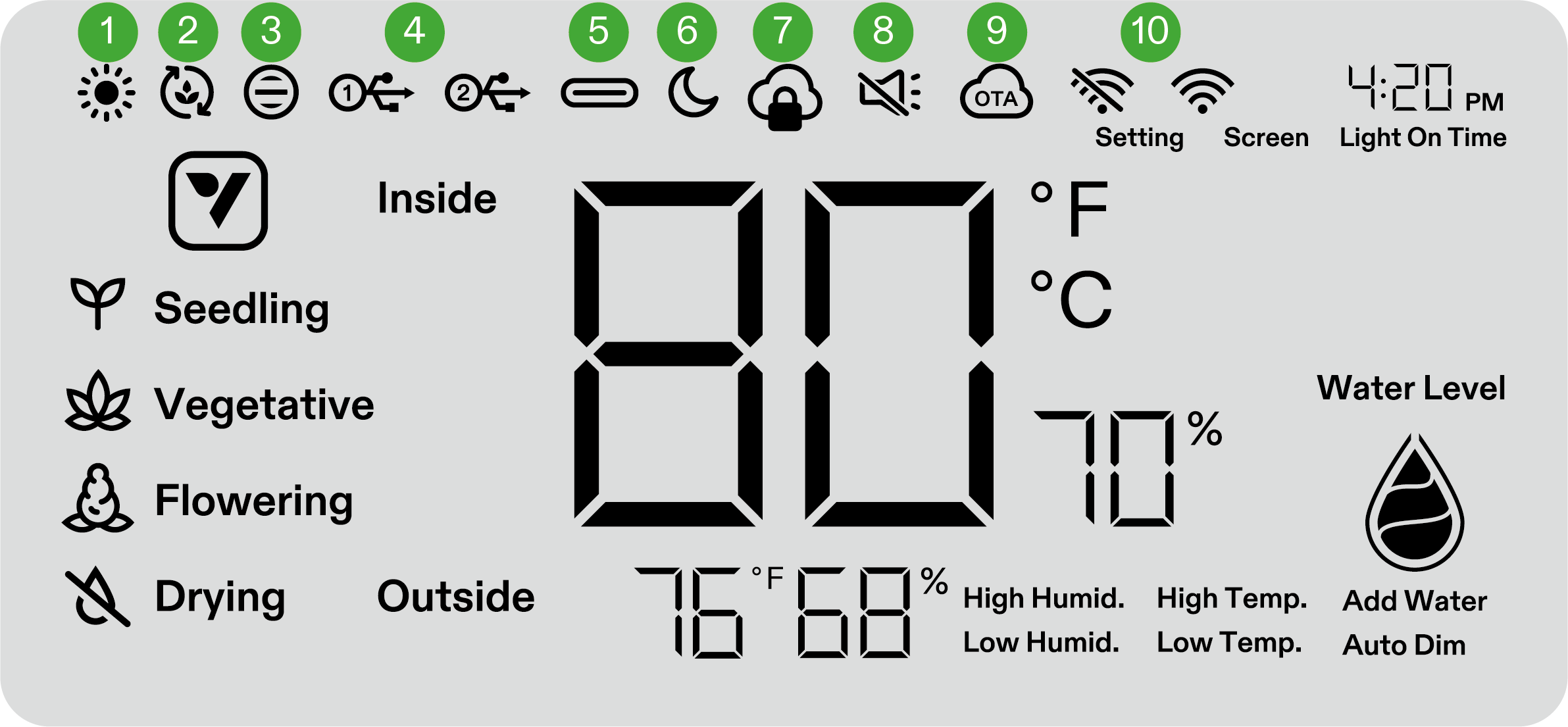
| No. | Name | Description |
|---|---|---|
1 |
LIGHT STATUS |
Indicates light is on. |
2 |
CIRCULATION FANS STATUS |
Indicates circulation fans are on. |
3 |
VENTILATION FAN STATUS |
Indicates ventilation fan is on. |
4 |
USB |
Indicates whether the USB ports are currently providing power for connected devices. |
5 |
TYPE C INTERFACE STATUS |
Indicates if Type C interface device is working. |
6 |
NIGHT MODE |
Night mode for status light. Turn on Night Mode to turn off status light. |
7 |
APP CLOUD LOCK |
Indicates device is being controlled by the VIVOSUN APP and the local controls are locked. |
8 |
MUTE |
Displays when the key tone is set to mute. |
9 |
OTA |
Displays when firmware is under an “over-the-air” update. |
10 |
WIFI ICON |
Indicates WiFi connection and signal strength.
|

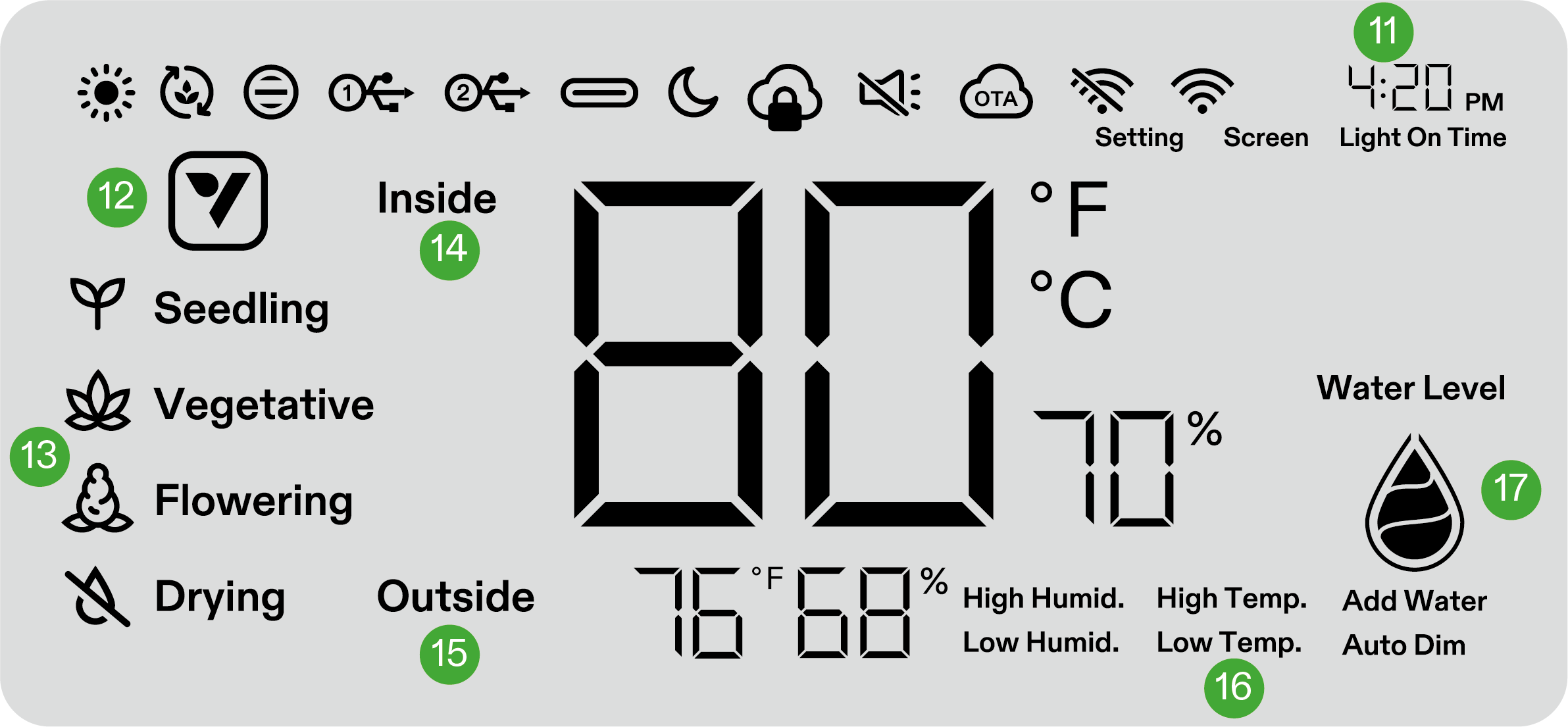
| No. | Name | Description |
|---|---|---|
11 |
TIME |
Displays current time (automatically sets when the device connects to WiFi) or light on time when setting stage on local display. |
12 |
ACTION ICON |
Indicates there is an action to do on VIVOSUN APP. |
13 |
STAGE |
Displays current stage. Stage will not display when the device connects to WiFi until select a stage recipe on VIVOSUN APP. |
14 |
INSIDE TEMPERATURE & HUMIDITY |
Displays the temperature and humidity value inside the device. |
15 |
OUTSIDE TEMPERATURE & HUMIDITY |
Displays the ambient temperature and humidity. |
16 |
ALARM |
Indicates alarms for High Humid., High Temp., Low Humid., Low Temp., Auto Dim and Add Water. |
17 |
WATER LEVEL |
Indicates Water Level for self-watering pot. |
OPERATION
SCREEN DISPLAY
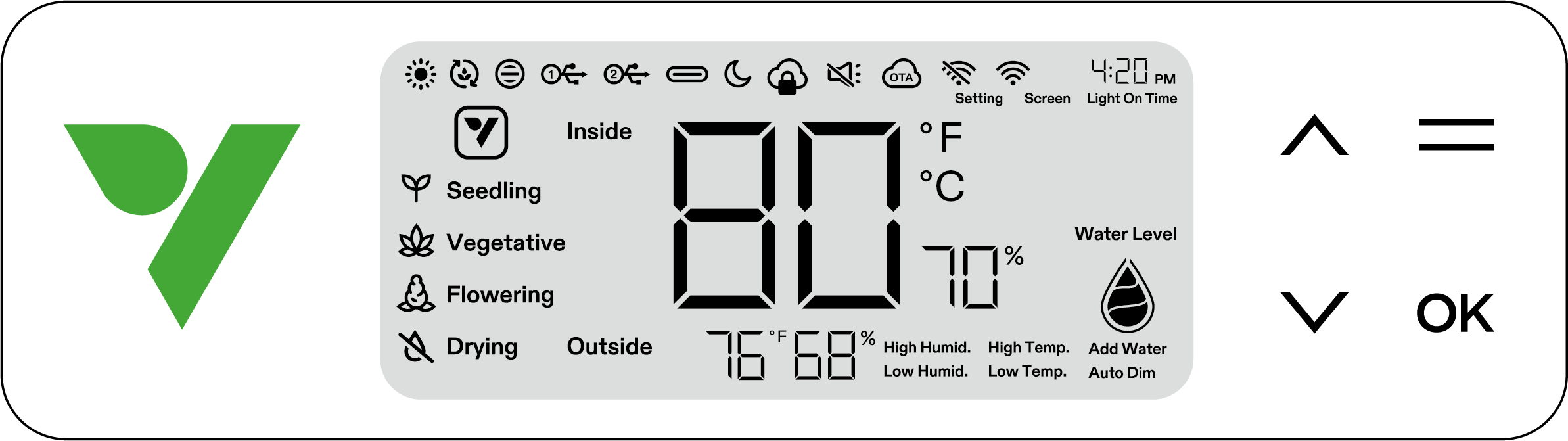
| Status | Status Light Night Mode OFF | Status Light Night Mode ON |
|---|---|---|
Normal operation |
Always On |
OFF |
Actions |
Pulsating |
OFF |
Alarms |
Flashing |
OFF |
| Screen Display | Alarm |
|---|---|
Temperature Value and High Temp. flash, Auto Mode activated. |
Temperature is too high (Temperature trigger set on VIVOSUN APP ) and need to lower the temperature. |
Temperature Value and Low Temp. flash, Auto Mode activated. |
Temperature is too low (Temperature trigger set on VIVOSUN APP) and need to increase the temperature. |
Humidity Value and High Humid. flash, Auto Mode activated. |
Humidity is too high (Humidity trigger set on VIVOSUN APP) and need to lower the humidity. |
Humidity Value and Low Humid. flash, Auto Mode activated. |
Humidity is too low (Humidity trigger set on VIVOSUN APP) and need to increase the humidity. |
Low Water Level and Add Water flash. |
Lack nutrients for plants and need to add nutrients to self-watering pot. |
Temperature Value and Auto Dim flash, Auto Mode and Auto Dim Mode activated. |
Inside temperature is too high (Temperature ≥ 33°C / 92°F). If temperatures climb above optimal ranges, the Auto-Dimming mode gradually decreases light intensity to control excessive heat buildup. Lights will remain active at reduced output. |
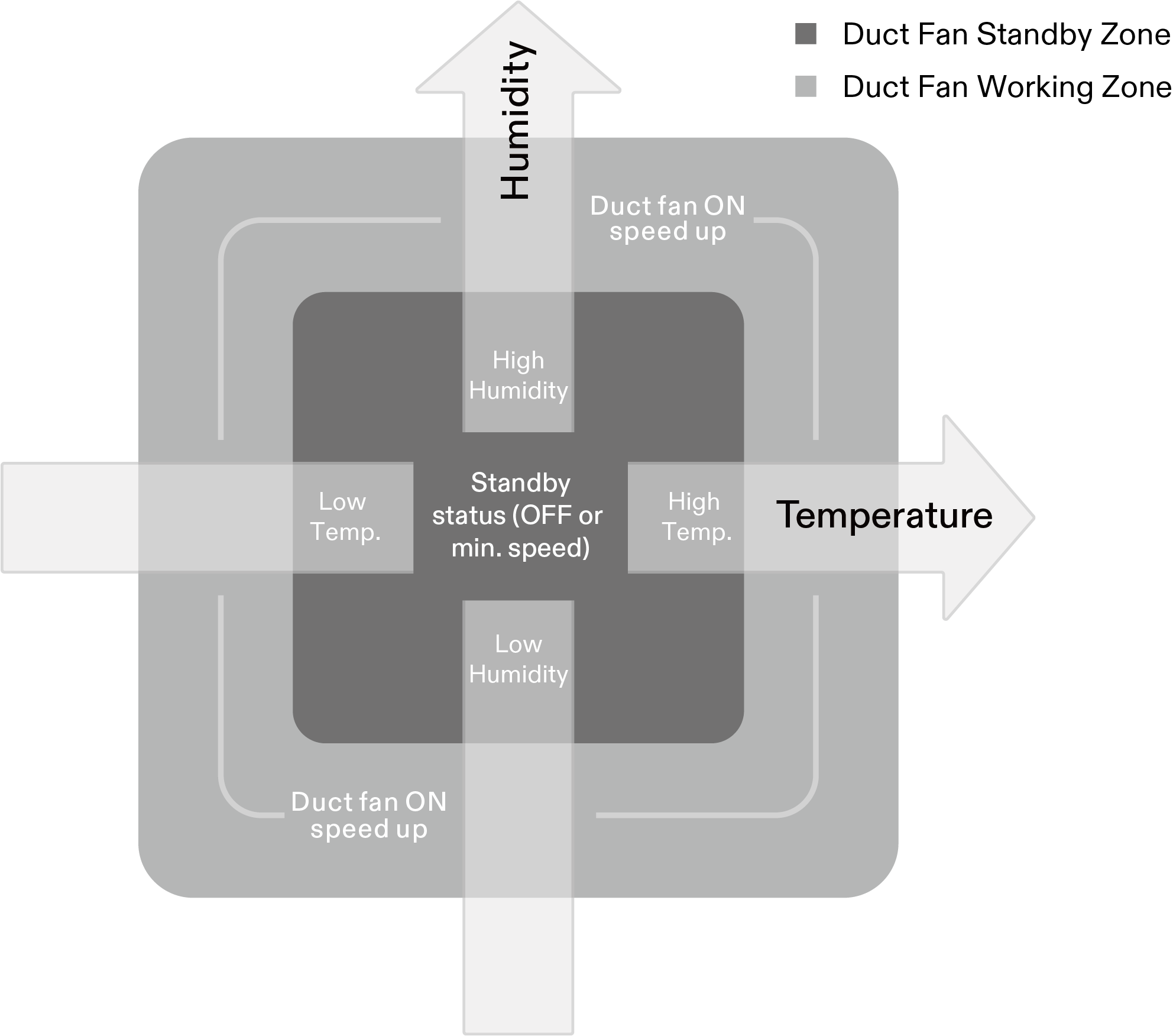
AUTO MODE - OPERATIONAL EXPLANATION
Settings for the thresholds differentiating the duct fan standby zone from the working zone can be adjusted through the VIVOSUN App. Within the VIVOSUN App, you have the flexibility to configure the duct fan’s operation mode during standby, opting to keep it OFF or run it at a minimum speed level.
In the VIVOSUN App, you can establish temperature and humidity thresholds, triggering the duct fan to activate or adjust speed levels accordingly. As the environmental conditions deviate further from the set thresholds, the fan speed will correspondingly increase.
Furthermore, if the temperature or humidity surpasses the preset levels, the respective values on the display will flash, providing a visual indication that the conditions are outside the defined parameters.
LOCAL OPERATION
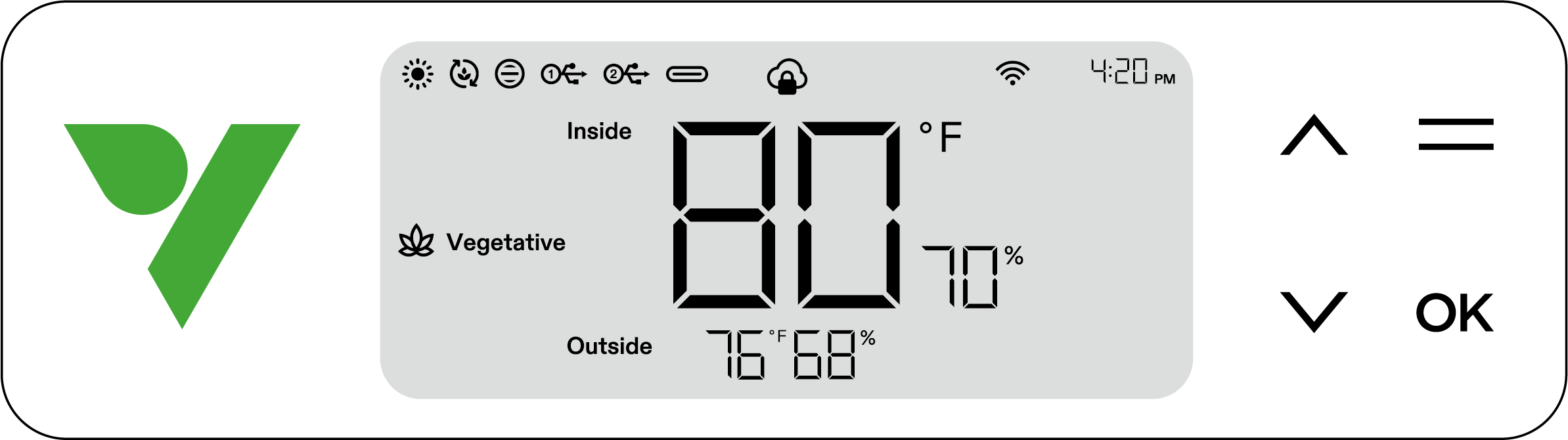
| Buttons | Press | Long Press | |
|---|---|---|---|
|
|
Increase a setting’s value when configuring parameters. |
Switch Temp Between °C and °F Display |
1. Press and hold both the UP and DOWN buttons on the device at the same time. Hold for a duration of 3 seconds. 2. When holding the buttons for the first 3 seconds, four short beeps will sound to confirm you are in the reset process mode. 3. Continue holding the buttons after the short beeps. 4. After holding the buttons for an additional 2 seconds, one long beep will sound, signaling the completion of the reset process. |
|
|
Decrease a setting’s value when configuring parameters. |
Turn on/Turn off Night Mode |
|
|
|
Enter seedling, vegetative, flowering and drying stage selection mode |
||
|
|
Confirm settings |
System settings for time (local display), mute and screen brightness |
|
For ultimate convenience, we suggest connecting your VGrow Smart Grow Box to the VIVOSUN app. This allows you to monitor and control your grow environment from anywhere via your smartphone or tablet, whether relaxing at home or traveling abroad.
Utilizing the app unlocks additional capabilities and functions that enhance the overall user experience.
VGrow also provides a user-friendly standalone operating mode. All critical controls and parameters can be applied directly through the local control panel display for out-of-box functionality without the app. This ensures the essential controls are readily available for all users in a streamlined interface.
1. Select the Stage
If no stage is selected, the display will cycle through four stages: Seedling, Vegetative, Flowering, and Drying. To manually select a stage, press the Menu Button to activate stage selection. Use the Up, Down, and Confirm buttons to choose between Seedling, Vegetative, Flowering, and Drying stages. After selecting a stage, you can further customize the light-on time (stage start time) by pressing the Up, Down, and Confirm buttons. Hold the Menu Button for 3 seconds to change the stage next time.
Note:
The local stage parameters have been preset by our growth experts. If you wish to customize your own stage parameters, kindly connect to the VIVOSUN APP for personalized settings and control.
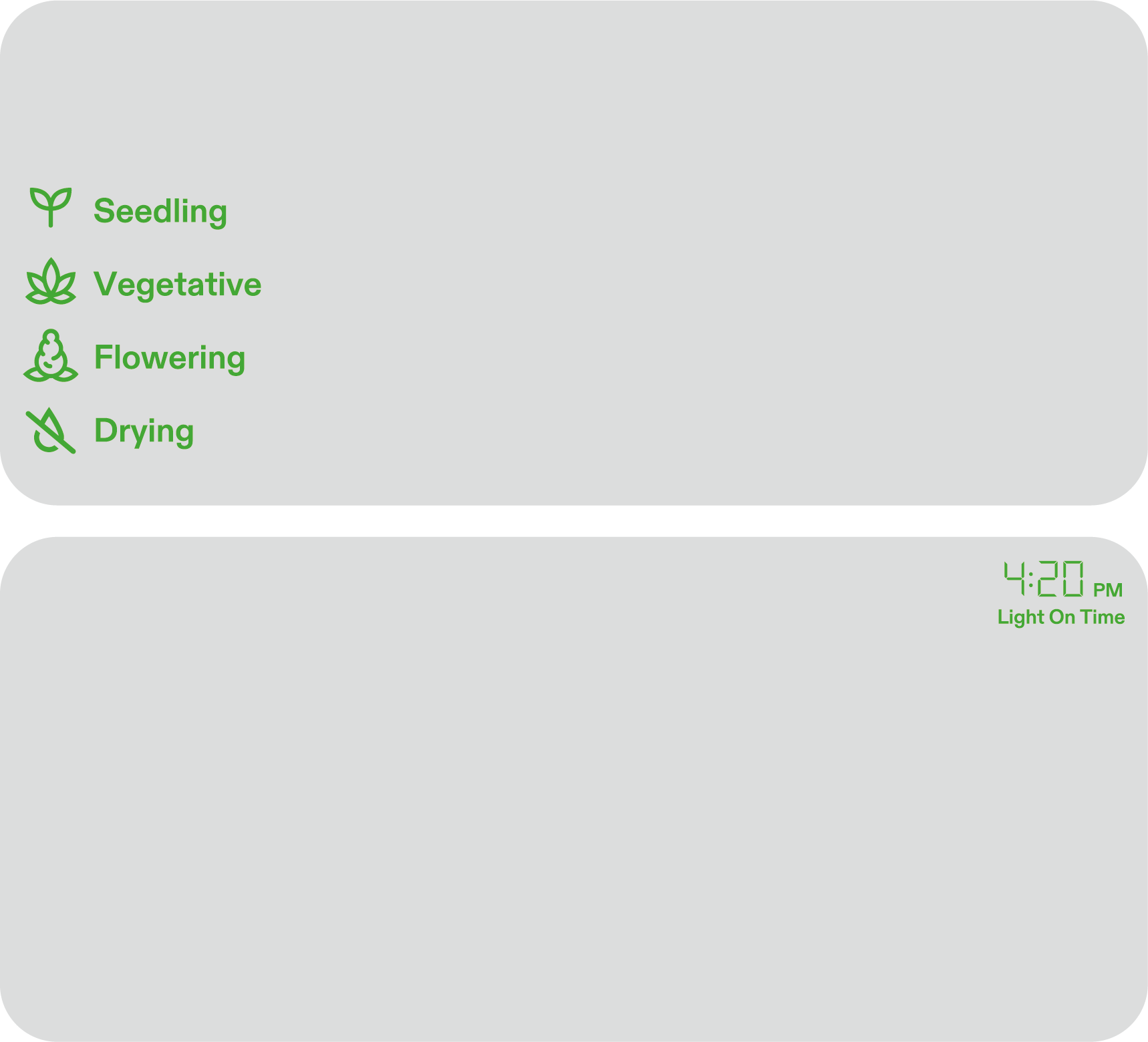
Seedling |
Vegetative |
Flowering |
Drying |
||
Grow Light |
Spectrum |
Seedling |
Vegatative |
Flowering |
/ |
Intensity |
60% |
80% |
100% |
OFF |
|
ON/OFF Cycle |
18h/6h |
18h/6h |
12h/12h |
OFF |
|
Sunrise/Sunset |
ON |
ON |
ON |
OFF |
|
Circulation Fan |
ON/OFF Cycle |
25min/5min |
25min/5min |
55min/5min |
25min/5min |
Speed |
1 |
Natural Wind |
10 |
3 |
|
Duct Fan |
Mode |
Auto |
Auto |
Auto |
Auto |
Max Speed |
10 |
10 |
10 |
10 |
|
Temperature Range |
Min: OFF Max: 29°C (85°F) |
Min: OFF Max: 29°C (85°F) |
Min: OFF Max: 29°C (85°F) |
/ |
|
Humidity Range |
Min: OFF Max: 85% |
Min: OFF Max: 75% |
Min: OFF Max: 60% |
Min: OFF Max: 55% |
|
Standby Speed |
0 |
1 |
1 |
1 |
|
Drip Irrigation Pump |
ON/OFF Cycle (one hour after lighting) |
5min |
20min |
35min |
/ |
Flow Rate |
200ml |
1000ml |
1400ml |
/ |
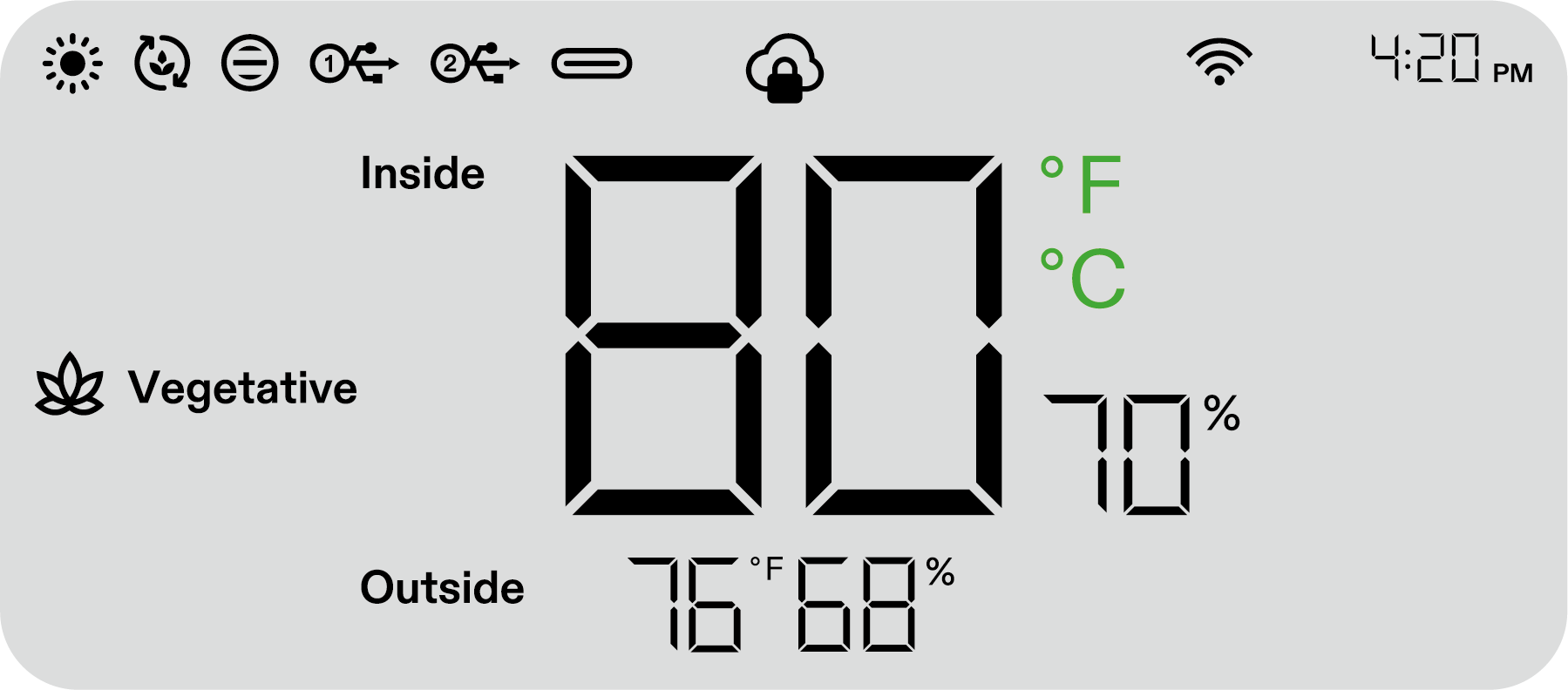
2. Switching Between Temperature Units (°F/°C)
Press and hold the Up button for 3 seconds to switch between °F and °C.
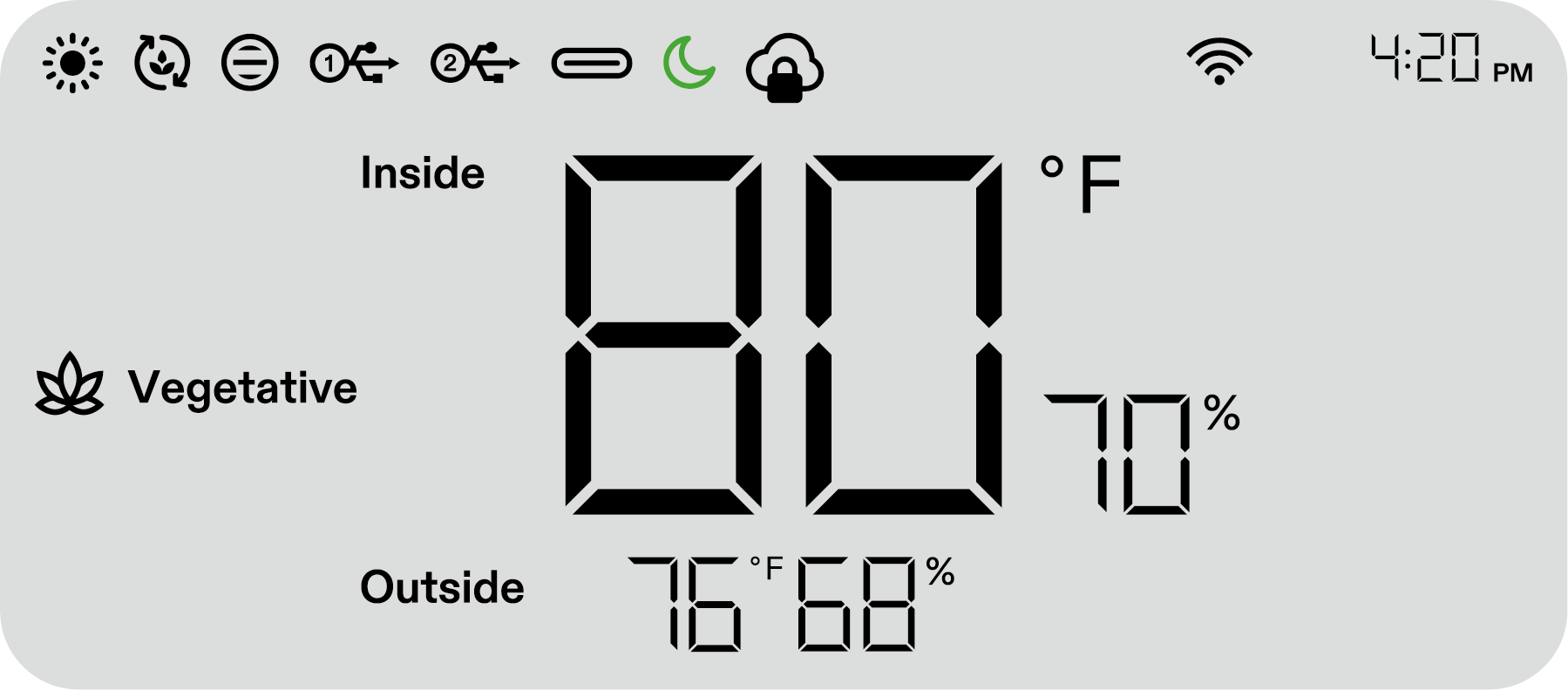
3. Night Mode
Press and hold the Down button for 3 seconds to turn on/turn off Night Mode.
4. Calibrating the Time
Press and hold the OK button for 3 seconds to enter system settings. Use the Up and Down buttons to choose between the 12-hour (12H) or 24-hour (24H) format. Adjust the hour and minute settings accordingly. Press OK to confirm.
Note: Time will automatically update when connected to WiFi.

5. Setting the Key Tone
Press and hold the OK button for 3 seconds to enter system settings. Use the OK button to navigate the menu and select "keytone". Use the Up, Down, and Confirm buttons to toggle the keytone on or off. If the keytone is off, a  will be displayed.

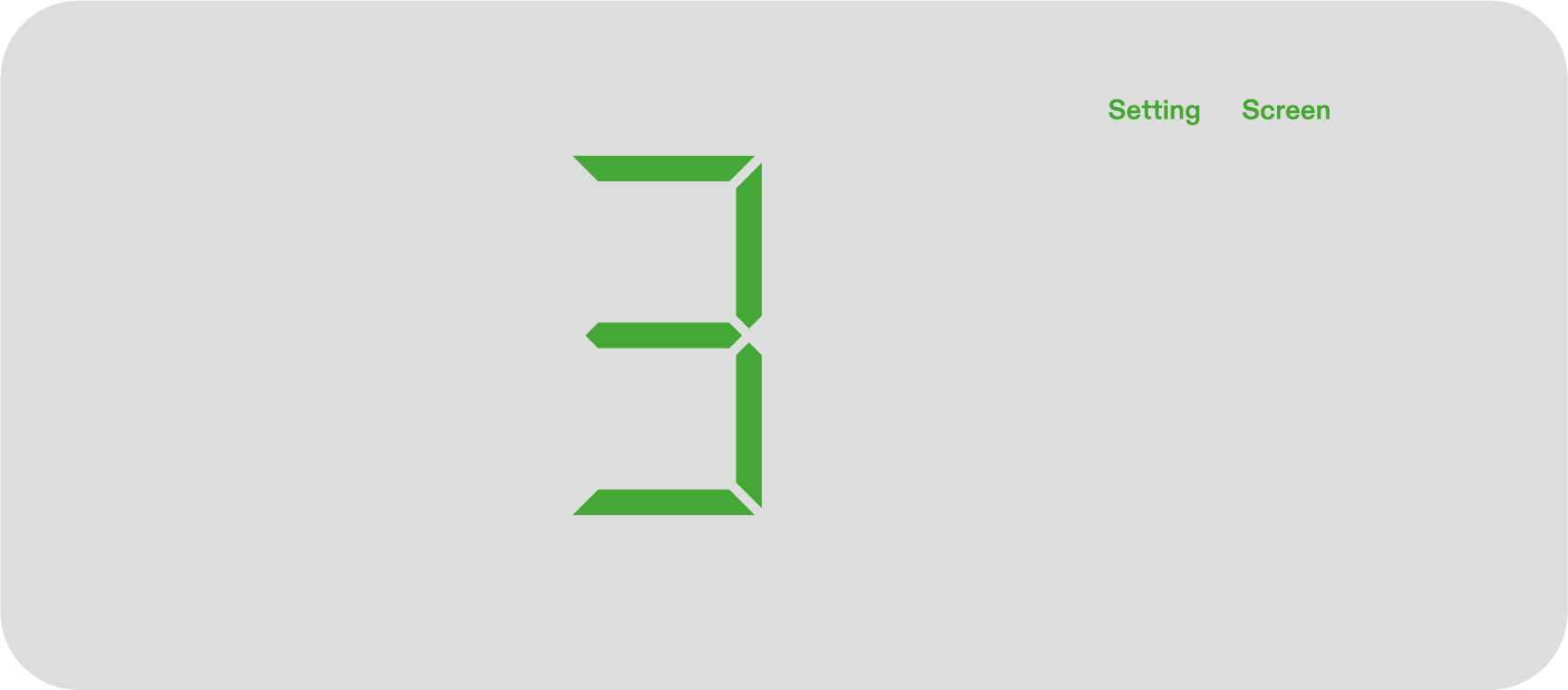
6. Adjusting Screen Brightness
Press and hold the OK button for 3 seconds to enter system settings. Use the OK button to navigate the menu and select "Screen". Adjust the screen brightness by pressing the Up, Down, and Confirm buttons.
Warranty
VIVOSUN offers a 2-year limited warranty on this product purchased directly from us or our authorized dealers, beginning on the original date of purchase.
This warranty is provided in addition to, and does not affect, your statutory rights under applicable consumer protection laws in the country where the product was purchased.
For the full Warranty Policy, please visit: https://www.vivosun.com/help/warranty-policy
Alternatively, you may contact customer service at support@vivosun.com / +1 888-505-8486.
Contents

We help you grow your best green.

We provide the highest quality.

We relentlessly pursue the future.

We make growing more enjoyable.

We support every grower.
Sign up and get 10% off your first order
©2026 Vivosun All Rights Reserved